Google Ads and Shopping for WooCommerce. Setup Guide 2026
Christian Beeking
Co-Founder, Cloudginny
November 3, 202624 min read
As of November 3, 2026. Applies to WooCommerce from version 11.0 with the Google for WooCommerce 3.10 plugin.
Search for “google ads woocommerce” and you'll find the plugin page, the English docs and older guides from 2022 and 2023 that still rave about free product listings. In the European Economic Area, they've been gone from Google's search results since mid-September 2026. A few other things have changed too: the plugin is no longer called Google Listings & Ads, it transfers products through a new interface, and its price sync had a bug over the summer that hit shops with gross prices. This guide takes you through WooCommerce Google Shopping and Google Ads from start to finish: requirements, plugin or feed extension, a feed for every target country, conversion tracking without double counting, the most common errors, and why the campaign is better created directly in Google Ads.
You need accounts with Google Ads, Merchant Center and WordPress.com, conversion tracking that passes the value of every order to Google Ads, and about an hour a week for upkeep. The WordPress.com account surprises many people, since the shop runs on its own server. But the official Google for WooCommerce plugin connects to Google through the Jetpack infrastructure of WordPress.com, according to Jetpack support with or without the Jetpack plugin installed. If this connection breaks, the plugin stops working.
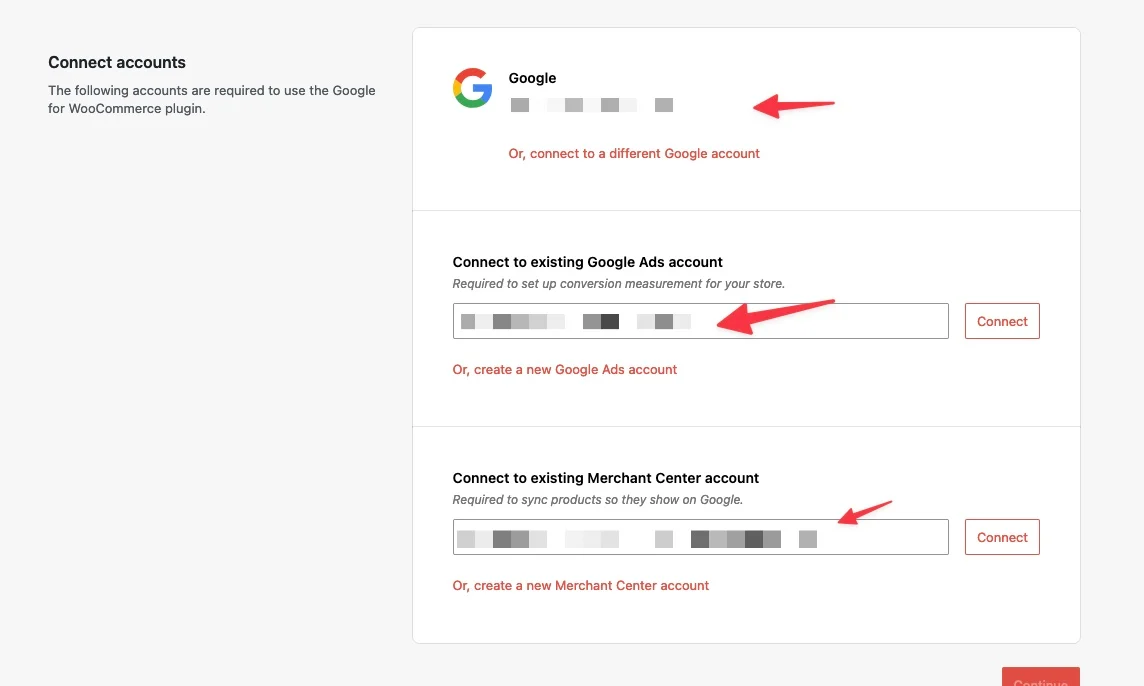
In the first step, you connect Google, Google Ads and Merchant Center. If an account is missing, you create it here. Screenshot: WooCommerce documentation
On top of that come Google's mandatory details for the shop itself. The requirements page in the Woo docs lists them: a reachable domain that is verified and claimed in Merchant Center, and a checkout over HTTPS with visible payment methods. Add a return and refund policy that's easy to find, with time limits and a return address, complete pricing before purchase and at least one way to get in touch. For shops in the European Economic Area and Switzerland, Merchant Center also has to be assigned to a comparison shopping service, which is Google Shopping by default. A well-run WooCommerce shop has all of this anyway, and in the EU, contact details and a cancellation policy are required by law. Usually only the entry in Merchant Center is missing. The basics, meaning the auction, ad types and costs, are covered in What is Google Ads?.
Accounts and time
Google Ads account
Merchant Center account
WordPress.com account for the plugin connection
conversion tracking with order value
about an hour a week for upkeep
Mandatory details for Merchant Center
verified and claimed domain
checkout over HTTPS with visible payment methods
return and refund policy with time limits and a return address
complete pricing before purchase
at least one way to get in touch
in the EEA and Switzerland: assigned to a comparison shopping service
On the technical side, version 3.10 of the plugin requires WordPress 6.9, WooCommerce 11.0 and PHP 7.4. The Marketplace still lists WooCommerce 10.9, but since version 3.9.6 the plugin requires 11.0. Before you start, it's worth a look at Status in WooCommerce, because an outdated shop often only stands out once the plugin won't load. And if Ginny takes over the upkeep later, no further plugin gets added. She works through the Google Ads account and Merchant Center, not through WordPress.
Minimum versions for Google for WooCommerce 3.10
6.9WordPress
11.0WooCommerce
7.4PHP
According to the plugin code, as of November 2026. The Marketplace still lists WooCommerce 10.9. You can see your versions in WooCommerce under Status.
How does setup work in WooCommerce?
In four steps, and the plugin guides you through all of them: connect accounts, choose target countries, enter shipping, sync products. According to the setup docs, you have to grant every requested permission when you connect your Google account, otherwise the plugin can't be used. It then looks for existing Merchant Center and Google Ads accounts and offers to create new ones if you don't have any yet.
Setup in the plugin
1Connect accountsWordPress.com, Google, Merchant Center and Google Ads
2Choose target countrieswhere your products should appear
3Enter shippingwith a delivery time for every country
4Sync productsafter that, with every change
You skip the wizard's last step, the Performance Max campaign.
The setup has pitfalls that are bigger than they look. First, the plugin overwrites existing settings in Merchant Center: shipping settings that you had already set up there are replaced by what you enter in the plugin. If you previously worked with a feed file, you should know that. Second, the plugin sends a delivery time for every target country. The field is prefilled with one to five days, and that range goes to Google if you don't change it. Enter a realistic range for every country, for example one to three business days for domestic orders.
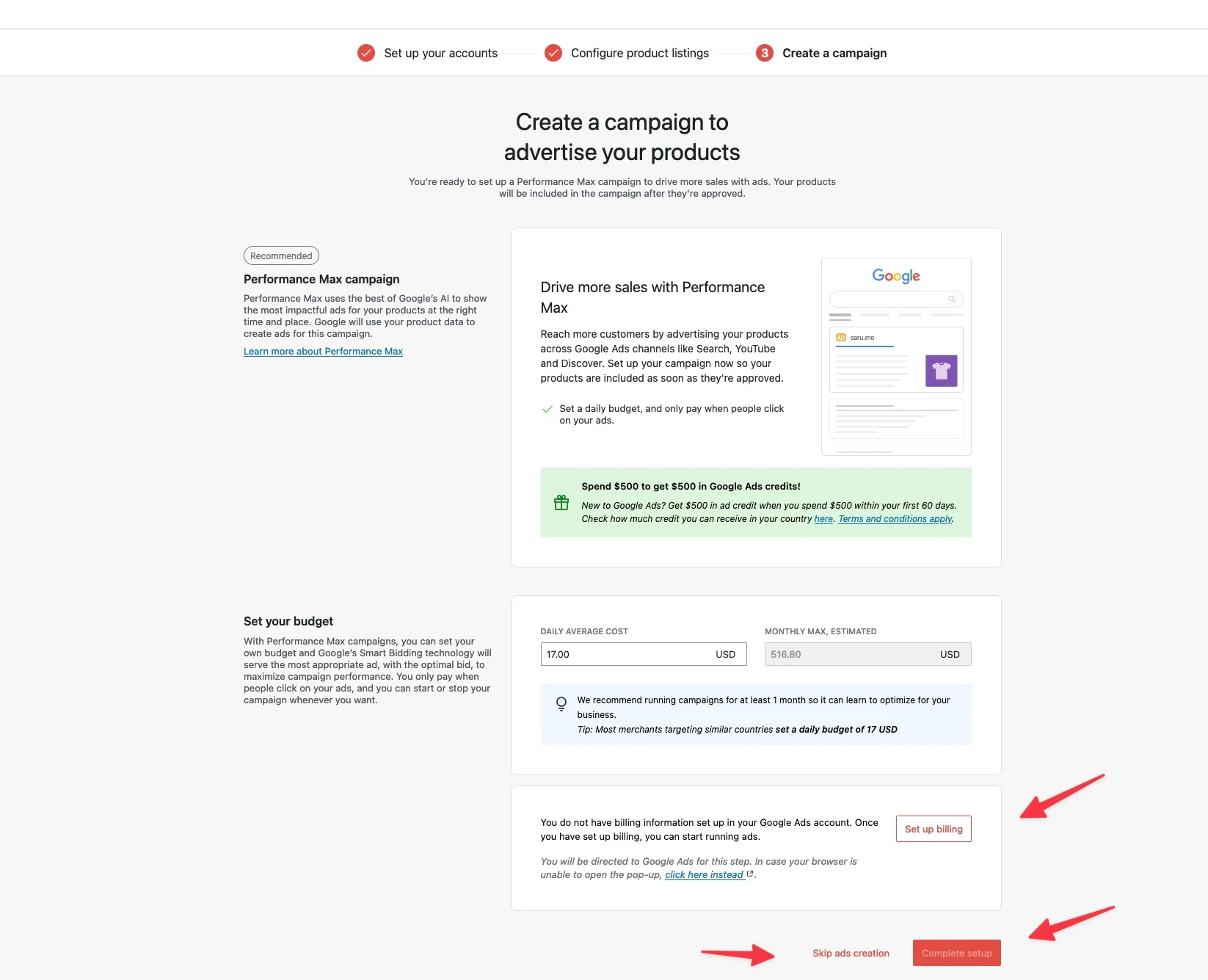
At the end, the plugin offers to create a Performance Max campaign right away. You skip this step, and the section on the campaign type explains why. After setup, the test page at /wp-admin/admin.php?page=connection-test-admin-page on your domain shows whether all connections are in place. How Merchant Center works after that and which status messages it shows is explained in the Merchant Center guide.
For most shops, the official plugin. It's free, sends products through Google's interface without a feed file and updates them with every change. You only need a feed extension once you need fields the plugin doesn't know, above all the unit price.
The difference lies in how the data travels. According to the Woo FAQ, Google for WooCommerce sends every product change to Merchant Center right away as a background job, and there is no feed URL. Products expire there after 30 days, which is why the plugin resubmits every product that will expire soon each day at 3 a.m. shop time. A feed extension, on the other hand, generates a file that Google fetches every day, the way Shopware's product comparison sales channel does. The file is slower, but you can see exactly what's in it and add fields. The Google Product Feed extension from the Woo Marketplace costs $79 a year and comes with fields for unit price, GTIN and custom attributes. Then there are feed plugins from other providers, from free to a few dozen dollars a month.
Plugin or feed extension
Google for WooCommerce
Feed extension
Cost
free
Google Product Feed $79 a year, other providers from free to a few dozen dollars a month
Transfer
through Google's interface, no feed file
feed file that Google fetches
Updates
with every product change
once a day
Visibility
status in the plugin and in Merchant Center
you can see exactly what's in the file
Unit price
only with code
as its own field
What you shouldn't do is run both at the same time. Then the same items sit in Merchant Center twice, and Google flags them as duplicate products that you have to clean up. And when you switch from a feed file to the plugin or back, the product IDs usually change. Google for WooCommerce puts the prefix gla_ in front of every ID, and a different ID is a new product to Google. The Woo FAQ describes the effect for the case where you remove the prefix later: reports from campaigns that ran with the old IDs no longer match the products afterwards. The product history that Performance Max uses to learn starts over. If you switch, remove the old products from Merchant Center first and plan for two to four weeks of weaker performance, ideally outside your peak season.
Why switching costs you the product history
Feed file id1234product ID from WooCommerce
Google for WooCommerce idgla_1234with prefixa new product to Google
Example values. Old reports no longer match the products afterwards.
Google Shopping feed from WooCommerce to Merchant Center
The feed is ready when every product arrives in Merchant Center with title, price including VAT, GTIN, image, availability and shipping costs exactly as it appears on the product page. The plugin needs help with two things: the shipping zones and, if you sell in the EU, the unit price.
For shipping, the plugin transfers your WooCommerce zones to Merchant Center, but according to the Woo FAQ not the zone “Locations not covered by your other zones”. If you deliver to some countries, such as your neighboring countries, only through this catch-all zone, Google gets no shipping costs for these countries, and the products there are disapproved. So create every country you deliver to and want to advertise in as its own shipping zone with its own rate. The plugin understands free shipping above an order value as long as it doesn't require a coupon, but not flat rates with advanced cost formulas, and it only transfers regional rates within a country for Australia, Japan and the US. Shipping costs have to be in the same currency as the product price, otherwise Google disapproves the product.
What the plugin transfers for shipping
Gets through
every separate shipping zone with its rate
free shipping above an order value, without a coupon
Doesn't get through
the zone “Locations not covered by your other zones”
flat rates with advanced cost formulas
regional rates within a country (only Australia, Japan, US)
For prices in countries outside the US and Canada, the plugin sends the price including tax and calculates it with the tax rate you've set in WooCommerce for that country. That's why your tax rates in WooCommerce have to be right, even if you enter prices gross. If a target country has no tax rate at all, the price goes to Google without tax. In August 2026, this logic had a bug: version 3.9 from August 5, depending on the tax settings, deducted VAT twice or added it twice for gross prices, fixed in 3.9.2 on August 31, 2026, according to the changelog. If your shop had disapprovals for price mismatches in those weeks, that may have been the cause.
What the 2026 updates changed
3.9, August 5tax bug with gross prices
3.9.2, August 31tax bug fixed
3.9.3, September 3sync pauses when the WordPress.com connection breaks
3.9.6, October 12notice for images under 500 × 500 pixels, WooCommerce 11.0 required
3.10.0, October 20current version
According to the changelog on GitHub. Before every update, check the last few days of discussions in the support forum.
The plugin doesn't know the unit price, which EU price rules require for food, cosmetics and many other goods. The fields for it can only be filled with code via the filter woocommerce_gla_product_attribute_values, or you use a feed extension that includes them. Since the switch to the Merchant API, the keys in the filter are called unitPricingMeasure and unitPricingBaseMeasure. The spelling unit_pricing_measure from older guides is dropped by the plugin without an error message. According to the Merchant Center Help, Google requires the unit price where the law requires it and shows it in the ad. If your shop already displays the unit price on the product page through a legal texts plugin, the value usually sits in a separate product field the filter can read from.
With codeThe filter woocommerce_gla_product_attribute_values with the keys unitPricingMeasure and unitPricingBaseMeasure.
Without codeA feed extension with unit price fields, such as Google Product Feed for $79 a year.
The plugin transfers variations individually, every size and color as its own product. That's how it should be, but it leads to a typical error: variations without their own image inherit the parent product's image, and if the red variation appears with the blue image, Google disapproves it for not matching the landing page. Since version 3.9.6, the plugin also warns about main images under 500 by 500 pixels. That's more than a recommendation: from January 31, 2027, Google requires this minimum size for all product images, according to the Merchant Center Help. What else Google expects in product data and how you build the feed for Shopping ads is covered in the guide Google Shopping for retailers.
Setting up Google Ads conversion tracking in WooCommerce
Tracking is right when exactly one tag reports the purchase with order value and order number to Google Ads and this purchase is the only primary conversion in the account. In WooCommerce shops, the opposite is usually the case, because several plugins set the same tag.
Google for WooCommerce installs its own Google tag and creates one conversion action for purchases when you connect the Google Ads account. The tag only sends page views, product pages and carts as events for remarketing. The Woo FAQ still talks about five conversion actions, but the plugin's code only creates the purchase action. If Google Tag Manager runs alongside with its own purchase tag, or the Site Kit plugin, whose plugin conversion tracking also reports WooCommerce purchases to Google, Google Ads can count every order twice. The ROAS in the account then looks twice as high, and the bid strategy optimizes for sales that only happened once. For Tag Manager, the Woo FAQ names the filter woocommerce_gla_disable_gtag_tracking, which switches off the plugin tag. Pick one route: either the plugin tag and then no second purchase tag, or Tag Manager with Consent Mode and then the plugin tag off.
One route, not two
Plugin tag
No second purchase tag in Tag Manager, no plugin conversion tracking in Site Kit.
Tag Manager with Consent Mode
Switch off the plugin tag with the filter woocommerce_gla_disable_gtag_tracking.
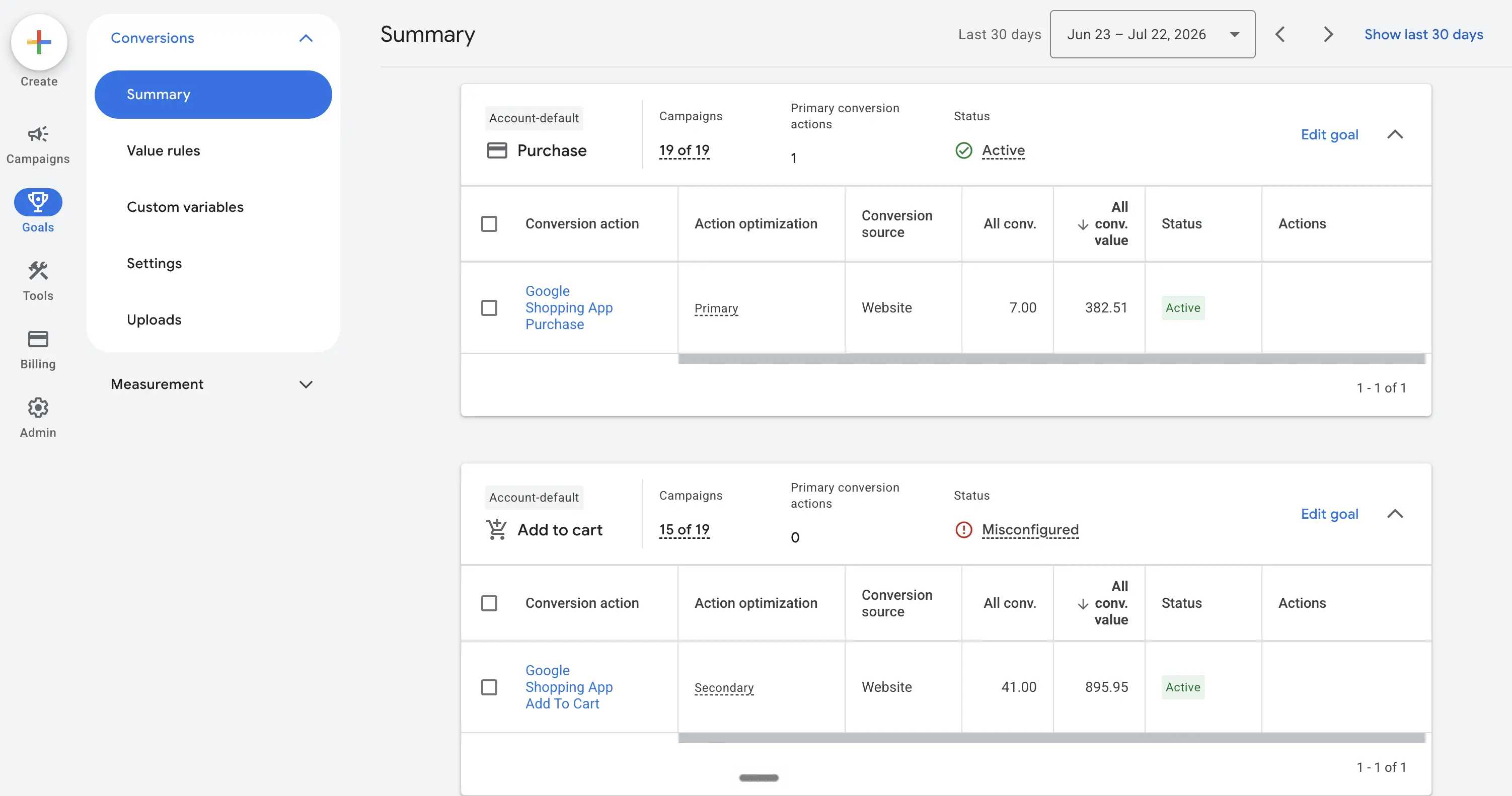
The second error is less obvious. Only the purchase should be marked as a primary conversion in the account, and alongside it there are often older actions, such as page views or add to cart events imported from GA4. According to the Google Help, bid strategies only optimize for primary actions, except with custom goals, and if page views or add to cart clicks are also primary, Google bids on visitors instead of buyers. Check this in Google Ads under Goals, Conversions: purchases primary with a value, everything else secondary. Why this is the most important lever in the whole account is explained in Optimizing Google Ads.
This is how it should look: the purchase is the only primary action, and the cart is only tracked for observation. Screenshot: Google Ads
Consent Mode is part of tracking. Without it, all purchases from visitors who decline in the cookie banner drop out, and in the EU that's a lot of people. The plugin sets Consent Mode v2 itself: in the EEA, everything starts out denied until your cookie banner reports consent to Google, either directly or through the WP Consent API plugin. After setup, check a test order: it has to show up in Google Ads exactly once within a few hours. As the value, the plugin sends the order total including VAT and shipping, and that belongs in the math for your ROAS target.
The most common errors in WooCommerce shops
Most disapprovals in WooCommerce shops have three causes: prices that differ in the shop and in Merchant Center, a connection that broke without anyone noticing, and maintenance or security settings that lock Google out.
The three most common causes of disapprovals
Cause
What happens
What helps
Price mismatch
tax bug from 3.9, a discount plugin or the cache shows a different price than the one sent
at least 3.9.2, discounts as sale_price or a promotion in Merchant Center, clear the cache after price changes
Broken connection
the sync stops, products expire in Merchant Center after 30 days
check the connection test page, reconnect, allow xmlrpc.php for the Jetpack servers
Maintenance mode or staging
Google sees no prices when it crawls
keep maintenance short, never connect staging sites to Merchant Center
Price mismatches are the most common reason for disapproval in our client accounts, even though disapprovals overall are rare, with a median under one percent. In WooCommerce, they come about in three ways. The tax bug from version 3.9 was one, and it's fixed. The second is discount plugins that only change the price in the cart or through a promotion rule: the product page shows $19.90, the plugin has sent $24.90, and Google sees the mismatch when it crawls. Discounts belong in the feed as sale_price or in Merchant Center as a promotion, not in a plugin the sync knows nothing about. The third is caching plugins that serve an old product page while the sync has already reported the new price. Clear the cache after price changes, especially before promotions.
Broken connections often go unnoticed for weeks, and in the plugin's support forum they're the most common topic, next to errors after updates and stuck product syncs. Before a plugin update, it's worth checking the discussions from the last few days, and after the update, a look at the connection test page. If the Google token expires or the WordPress.com connection is cut, the plugin stops syncing, and the products in Merchant Center expire after 30 days. Since version 3.9.3, the plugin pauses the sync when the WordPress.com connection is broken and shows a notice in the backend to reconnect. A common cause that comes up again and again in the support forum: a security plugin blocks the file xmlrpc.php, which the Jetpack connection runs through, and the connection fails with a message saying the Jetpack server couldn't connect to the site through xmlrpc.php. In that case, allow xmlrpc.php for the Jetpack servers instead of blocking it completely.
Maintenance mode is the third classic. Besides visitors, a maintenance plugin also locks out Google's crawler, which checks the product pages against the feed. If the shop is in maintenance mode overnight, Google sees no prices and disapproves. The same goes for staging sites that are accidentally connected to Merchant Center. That's why a check round before going live pays off. Open product pages from outside without logging in and compare several variable products with price, image and availability against Merchant Center. Compare tax and shipping settings, work through all disapprovals in the diagnostics before the first campaign gets a budget, and note which plugins change prices or stock.
Check round before going live
open product pages from outside without logging in
compare several variable products with price, image and availability against Merchant Center
compare tax and shipping settings
work through all disapprovals in the diagnostics before the first campaign gets a budget
note which plugins change prices or stock
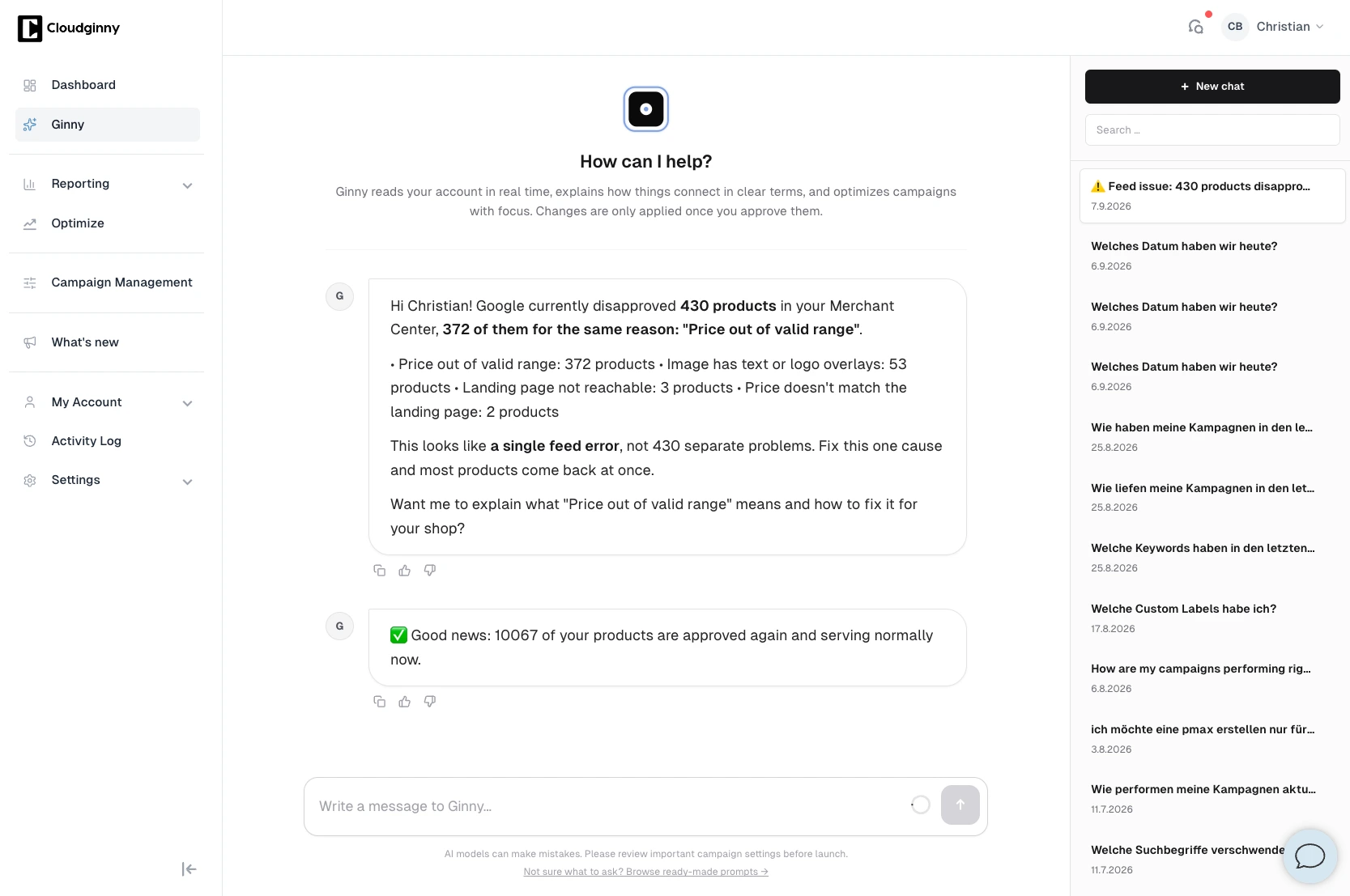
What the individual messages mean is explained in our article on the three most common reasons for disapproved products. If you don't want to check Merchant Center yourself every morning: Ginny reports disapproved products with the cause and a suggested fix as soon as they appear.
Ginny groups disapprovals by reason. Here, 372 of 430 come down to a single price error in the feed. Screenshot: Cloudginny
Performance Max or Standard Shopping for WooCommerce shops?
Standard Shopping first, Performance Max from 30 to 50 orders a month from Google Ads. The plugin can't do that, because according to the Woo docs, Google for WooCommerce only creates Performance Max campaigns. So you use the plugin for the feed and build the campaign directly in Google Ads.
When to use which campaign
StartStandard Shoppingwith “Maximize clicks” and a bid limit, product groups by margin or bestsellers
from 30 to 50 orders a monthadd Performance Maxone asset group per product range, your own brand as an exclusion
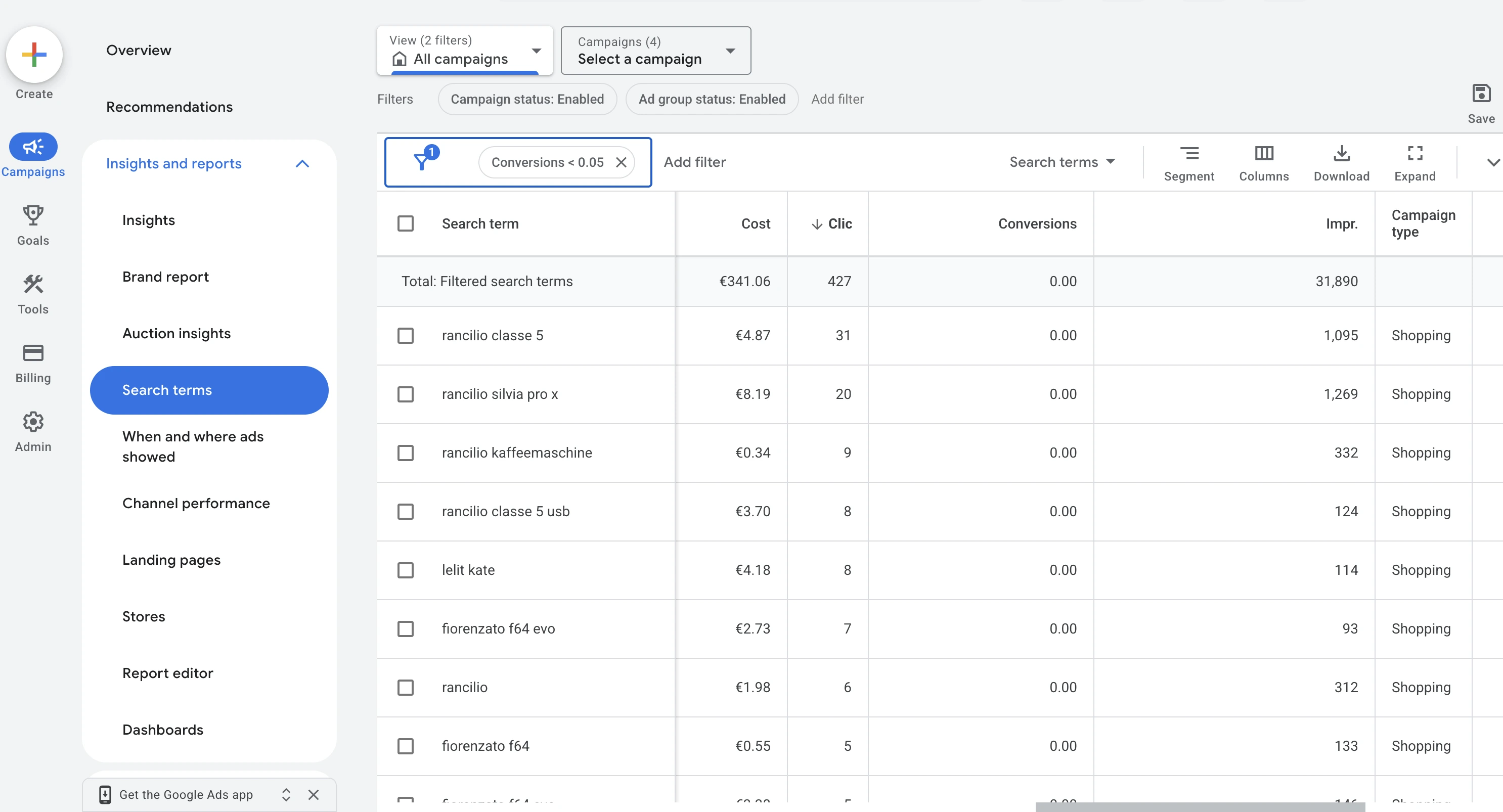
The order comes down to data. Performance Max steers fully automatically and learns from conversions, and a fresh account doesn't have any yet. The campaign then spends the budget the way Google sees fit, and that rarely lines up with your margins. Standard Shopping, by contrast, shows you every search term and lets you steer product groups individually. In the first few weeks, you learn which products sell and which search queries only cost money, and that's exactly the data Performance Max needs later.
The search terms report, filtered to terms without conversions: Standard Shopping shows you this list in full. Screenshot: Google Ads
The products the plugin sends to Merchant Center are available in Google Ads as usual. There you create a campaign of the type Shopping, choose the linked Merchant Center and your target country, start with “Maximize clicks” and a bid limit, and split the products into product groups by margin or bestsellers. As soon as you have 30 to 50 orders a month, you add Performance Max, with a separate asset group per product range and your own brand as an exclusion. You then create the campaign the plugin wanted to offer during setup yourself in Google Ads, with the same products and more control. What the same decision looks like for Shopware is covered in the Shopware guide, and the route is the same.
What does Google Ads cost for a WooCommerce shop?
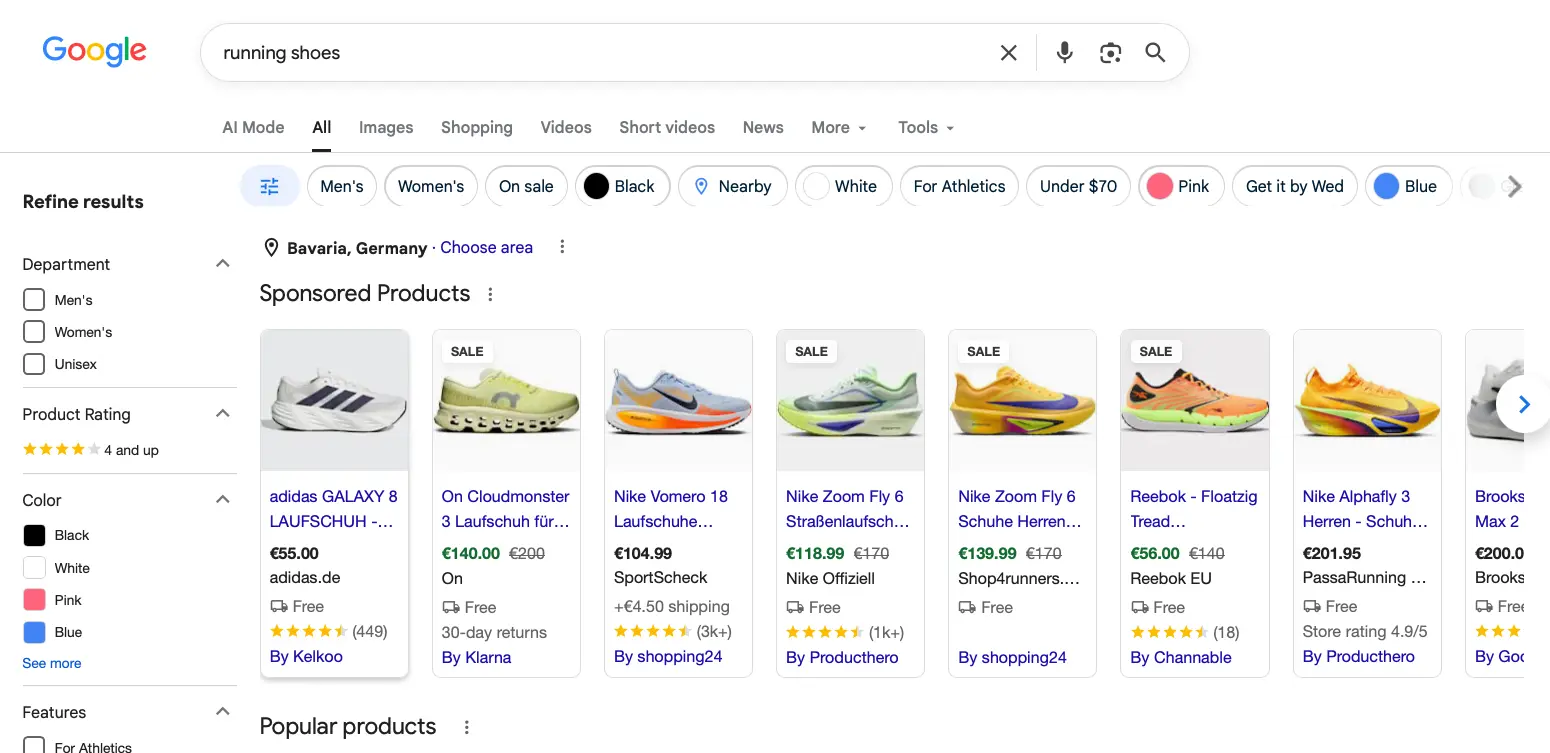
The plugin costs nothing, Google charges neither a setup fee nor a base fee, and you pay for clicks. And since mid-September 2026, there's no way around ads in the European Economic Area if your products are to appear in Google's search results with an image and price. Google has removed the free product listings that the Woo docs and older guides still advertise from the search results in the EU, Norway, Iceland and Liechtenstein, according to Search Engine Roundtable as a consequence of the Digital Markets Act. Outside the EEA, for example in Switzerland, this doesn't apply. Within the EEA, the line on the plugin page that your shop is automatically listed on Google after the sync now only holds through ads.
In the EEA, products now only reach the search results with image and price as an ad. Screenshot: Google Search
In our client accounts, the median cost per click for Shopping is €0.42, and the middle 50 percent of accounts range between €0.27 and €0.57. For the start, we recommend a monthly budget of €500 to €1,500, so that bid automation gets enough orders to learn from. Add the feed extension for the unit price if you need it, plus what the upkeep costs: your time, an agency or an AI agent. Ginny costs $149, $349 or $699 a month excluding VAT, tiered by ad budget, needs no plugin for WooCommerce, and no change goes out without your approval. The tiers are on the pricing page, and the full calculation with break-even and margin is in the guide Google Ads costs.
$0for the Google for WooCommerce plugin
€0.42median cost per click for Shopping, the middle half of accounts sits between €0.27 and €0.57
€500 to €1,500starting budget per month, our recommendation
Costs per click from our clients' Shopping and Performance Max accounts in the DACH region.
No hour a week to spare?
Ginny works directly in Google Ads and Merchant Center. You install nothing in WordPress, and only what you approve gets applied.
Frequently asked questions about Google Ads and WooCommerce
Do I need a Google Shopping plugin for WooCommerce?
Yes, one. WooCommerce has no built-in export to Merchant Center. The official Google for WooCommerce plugin is free and is enough for most shops. You need a paid feed extension if you want to send fields like the unit price without your own code. Using both leads to duplicates.
Why aren't my WooCommerce products showing on Google?
The most common reasons: the WordPress.com connection has broken and the sync has stopped, or the price in Merchant Center differs from the product page. Just as often, shipping costs are missing for a country because it's only in the zone “Locations not covered by your other zones”, or the shop was in maintenance mode when Google crawled. The diagnostics in Merchant Center name the reason for each product. And since mid-September 2026, products in the European Economic Area no longer appear in Google's search results without Shopping ads, even if the feed has no errors.
How quickly do product changes reach Google?
Google for WooCommerce sends every change right away as a background job, and in practice prices and stock are in Merchant Center within minutes. This requires WordPress cron to be running. With feed extensions, Google fetches the file once a day, so price changes made in the morning only show up the next day.
Can I set up conversion tracking without a plugin?
Yes, through Google Tag Manager with a purchase tag that reads order value and order number from the thank-you page. Then you have to switch off the Google for WooCommerce tag via the filter woocommerce_gla_disable_gtag_tracking, otherwise Google Ads counts every order twice.
Do I need a plugin to use Cloudginny with WooCommerce?
No. Ginny works through your Google Ads account and your Merchant Center, not through WordPress. You link the Google accounts, and she checks search terms, budgets and disapproved products every day, no matter which shop system sits behind them. The feed still comes from Google for WooCommerce or your feed extension.
Is this guide also available for other shop systems?
Christian Beeking is co‑founder of Cloudginny, the AI agent for automating Google Ads in e‑commerce. Before Cloudginny, the team managed more than 100 million euros in Google Ads budget for brands such as MediaMarkt, Cisco and Bose, and has now poured that knowledge into Ginny. Cloudginny is an official Google Partner, a WebStollen partner and part of the German Accelerator.
Most guides to Google Ads optimization are lists of ten equally weighted tips. In an online shop, though, the order decides: if you fine-tune bids while Google counts page views as sales, you only amplify the error. This guide shows the five levers in the order in which we tackle shop accounts, with figures from our customer accounts and the right rhythm for changes.
A Google Shopping agency only pays off from around $7,500 to $10,000 in monthly ad spend, and the feed tool, CSS fee and setup come on top of its fee. Most shops spend far less. This article covers what a Shopping agency really costs, what’s behind the promised 20 percent CSS savings, how to spot a bad offer and when an AI is enough for ongoing maintenance.
In December, every delivery promise counts, and Google calculates the delivery date for Shopping from your data. Because Google counts Christmas Eve and New Year's Eve as normal business days, it easily produces dates no carrier can keep. This article covers the 2026 shipping deadlines, how Google calculates the delivery date and what to change in Merchant Center through January.