← Back to Blog

Google Ads for Shopify Shops: 2026 Setup Guide

Shopify does more of the Google Ads heavy lifting for you than any other commerce platform. Product feed, conversion tracking and your first Performance Max campaign all come out of a single onboarding flow, without you touching a line of code. That convenience is why so many Shopify setups are only half finished. They look finished. The things that break sit in completely different places than they do on a self hosted shop, and most guides out there still describe the Shopify of the pre checkout upgrade era.

This guide is written for Shopify merchants running a monthly Google Ads budget between €500 and €20,000, whether you are starting fresh or auditing an account that has been running for a while. It reflects the state of play in July 2026 and tells you where each claim comes from. Where a widely quoted number has no solid source behind it, we say so instead of passing it on.

One thing up front, because it overrides everything else. If your shop is not on Shopify Plus and your conversion tracking still lives in Additional Scripts on the order status page, you have until August 26, 2026. After that Shopify upgrades those pages automatically and those scripts are gone. No error message, no warning inside your Google Ads account. Which is why the section on it sits near the front.

TL;DR

This is the whole guide in seven points, in the order you work through them. Each one is covered in depth further down, with menu paths and sources.

  1. Deal with the August 26, 2026 deadline first. If your Google tag still sits in the additional scripts of the legacy thank you and order status pages, your conversion tracking breaks that day, with no error message in the ads account. Open Settings, Checkout and work through the upgrade report before you optimise anything else. For Shopify Plus the deadline passed on August 28, 2025.
  2. Build your tracking through the Google & YouTube app, and only there. Shopify has three ways to install Google tags, and none of them switches off the others. If an old tag keeps firing from a custom pixel or the theme next to the app, every sale counts twice and Smart Bidding learns from the wrong numbers. Go through Settings, Customer events line by line until you can explain every pixel.
  3. Only the purchase gets to bid. When you link the account, the app creates purchase, add to cart and checkout started. Purchase is the only one that belongs on primary. Check under Goals, Conversions in Google Ads that the other two really are observation only, otherwise the bid strategy values a cart click like revenue.
  4. Wire up Consent Mode v2 deliberately. The Shopify cookie banner only governs Shopify's own pixels. If your tracking runs through the Google & YouTube app, consent mode is active automatically. With your own container you set the signals yourself, otherwise EEA conversions go missing with nothing modelled in their place.
  5. Maintain the feed in your product data, not in Merchant Center. The GTIN belongs in the variant's barcode field, the Google category in the Category field, and every product also has to be published to the Google & YouTube sales channel. The most expensive catch for non-English shops: product options have to be named in English, Color and Size, or variants never sync at all.
  6. Keep the campaign structure small. Up to around €2,000 a month, one Performance Max campaign and a brand search campaign on exact match brand terms are enough. After that, leave budget and bid target alone for six weeks, or the campaign never gets out of its learning period.
  7. Check the Google Ads defaults. Set the location option to presence, decide deliberately about search partners, and go through the automatically applied recommendations. From September 2026 Google also moves campaigns to AI Max in stages, with final URL expansion switched on by default.

Contents

Example shop

To keep things concrete, one anonymised example shop runs through the whole guide: an independent brand selling handmade ceramics and home accessories on Shopify, roughly €1,500 in monthly Google Ads budget, one single Performance Max campaign created through the Google & YouTube app four months ago. The ROAS in the ads account looks excellent. The revenue never shows up in the Shopify report. And close to half the catalogue never made it into Merchant Center in the first place. Both have causes that are very typical of Shopify.

What Shopify handles for you and what you still have to build

The Google & YouTube app sits in the Shopify App Store, published by Google rather than by Shopify. It is free to install and it lives in your admin under Sales channels. Shopify describes the channel as managed by Google, and the wording is worth taking literally. If your Merchant Center account gets suspended or an ad gets disapproved, Shopify support is not an escalation path; they will point you at Google.

The work it does cover is worth having.

  • Product sync into Merchant Center. Google expires product data after 30 days. The channel refreshes it inside that window automatically and syncs again whenever something changes. On self hosted shops, the cron job nobody watches is the most common cause of a sudden loss of reach, and the channel removes that failure mode entirely.
  • Conversion measurement for Google Ads. According to Shopify this works even without a Merchant Center account, so it works whether or not you run shopping ads at all.
  • Verifying and claiming your domain. Both happen automatically during onboarding, as long as you only run one domain.
  • One Performance Max campaign. You start it in the app, it is created in Merchant Center, and you manage it in Google Ads. No other campaign type can be created from the app.
  • Product Studio. Google's image tooling sits directly inside the app for Shopify merchants, with background removal, generated scenes and upscaling. Video generation is only available in selected countries, as of July 2026 including Australia, Canada, India, Japan, the UK and the US. Google changes that list regularly, though the image features work everywhere.
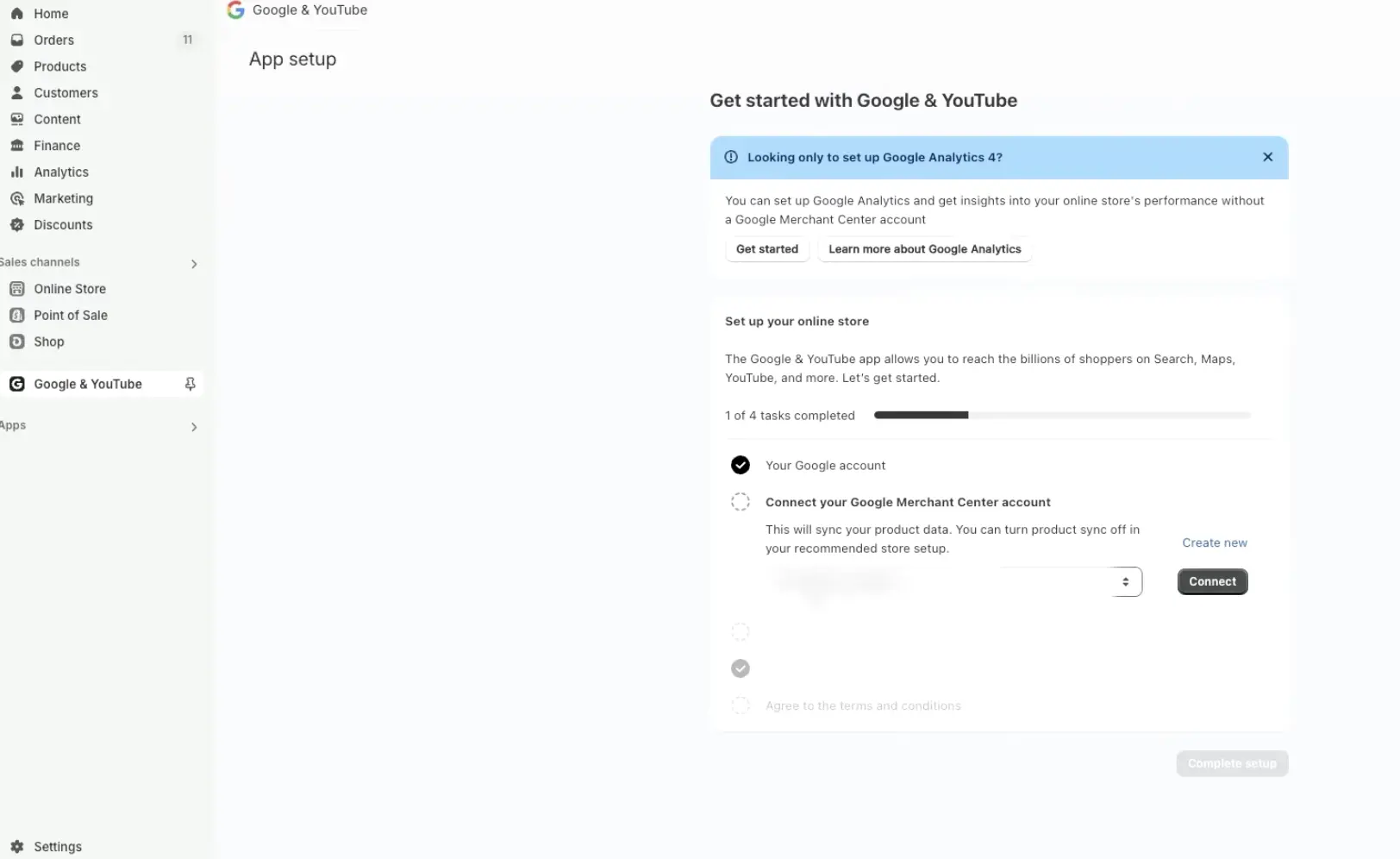
Shopify admin, Sales channels, Google & YouTube: the setup assistant shows one of four tasks completed. The Google account is connected, the next step links the Merchant Center account via the Connect button, and the remaining steps down to the terms and conditions are still open.
The whole channel in one assistant: four tasks, and from then on feed, tracking and campaign all run through this single connection.

Where the channel stops

Google documents the limits itself, and they account for most of the setups that stall halfway.

No Google Tag Manager through the app. Because of platform limitations, Tag Manager cannot be configured through the Google & YouTube app on Shopify. Google puts that in writing.
Google tags via custom pixel are treated as unsupported. Google draws a support boundary there and will not troubleshoot the setup with you.
One account per Google product. Google's own Google Ads documentation says the app supports directly linking a single account, and any additional accounts have to be wired up manually using conversion IDs and labels. A Merchant Center account, likewise, can only be connected to one Shopify store at a time.
No multi client accounts. A Merchant Center account of the MCA type cannot connect directly to Shopify. Agencies that keep every client under one roof run into this wall on the first attempt.

The order to do this in

Two of the steps below are miserable to undo after the fact, so the order is not arbitrary.

  1. Set your primary domain. Under Settings, Domains your real domain has to be the primary one before you connect the app. Otherwise it writes myshopify.com links into the feed and the site cannot be claimed cleanly.
  2. Turn off password protection. Under Online Store, Preferences. A password protected shop cannot be crawled, and the errors that follow tend to send people hunting through the feed for a fault that was never there.
  3. Create and link your policy pages. Settings, Policies holds your refund policy, terms of service, privacy policy and, for German shops, the Impressum in its own field. Careful here, because Shopify only links saved policies automatically in the footer of the checkout pages, while Google inspects your public storefront. Those links also belong in the footer menu under Online Store, Navigation.
  4. Make contact details visible. You need at least a postal address, phone number, email address or contact form on a publicly reachable page.
  5. Prepare shipping and returns. Only shipping rates from your general shipping profile sync to Merchant Center. Shopify says that with custom shipping profiles, rates sync incorrectly and cause errors. It is the profile that decides this, whatever rate type you use. Carrier calculated rates are supported by the channel only for certain carriers in Australia, Germany and the US.
  6. Connect the app. Sales channels, Google & YouTube, connect your Google account, pick your Merchant Center account, confirm ownership with a six digit code. Shopify says the first product sync takes up to 24 hours, after which Google reviews new products for three to five business days.
  7. Enter your return policy in two places. This is the one almost everyone misses. The channel syncs your store domain, product data and shipping and tax settings, but leaves your return rules alone. The simplest route is to enter them directly in Merchant Center under Shipping and returns. Alternatively, Google accepts account level policies from Search Console, structured data on your product pages, or the Merchant API. Once submitted, review takes up to ten business days.
  8. Link Merchant Center and Google Ads. In Merchant Center under Settings, Access and services, on the Apps and services tab. You need admin rights in both accounts.
An existing feed gets overwritten

If a product feed already exists in Merchant Center when you connect the channel, it is overwritten to avoid conflicts, and Shopify says so openly. Anyone migrating from a self hosted shop, or coming off a feed tool, loses months of accumulated title rules, custom labels and exclusions in one move.

Export and document them beforehand. Then remember that attribute rules in Merchant Center do not travel with a data source change either. Those have to be rebuilt.

Rule of thumb

The channel handles the mechanics; the responsibility stays with you. Fix product data in Shopify, because Shopify overwrites Merchant Center on every sync. Campaigns, budgets and audiences change in Google Ads and nowhere else. Repair product data inside Merchant Center and the next sync puts you back where you started.

August 26, 2026 and what quietly happens that day

Shopify rebuilt its checkout in stages, and two dates from that rebuild matter for Google Ads. The additional scripts field in your checkout settings has been read only since August 28, 2025, so nothing new goes in there. Shopify Plus shops had to migrate their thank you and order status pages by that date, and since January 2026 Shopify has been upgrading the remaining Plus shops automatically with 30 days' notice. For every other plan the deadline lands on August 26, 2026, after which the field disappears there too.

What happens next is spelled out plainly in Shopify's own documentation. Shops that have not upgraded get upgraded anyway, and every customisation on the legacy pages disappears in the process. Analytics scripts are removed. Shopify attempts a best effort migration to custom pixels, but it guarantees nothing. Google's help centre names the same two dates and describes the consequences as critical limitations for shops that have not migrated. In plainer terms, Google expects a noticeable impact on customer reach and on the effectiveness of your campaigns and bid strategies.

Why this outage is so expensive

When conversions stop arriving, Google Ads does not raise an error. It simply reports fewer conversions, and Smart Bidding responds the way it is designed to, lowering your bids because the channel looks like it has stopped delivering. By the time somebody starts hunting for the cause, one to two weeks of delivery are gone. On top of that, the bidding strategy needs a fresh learning period.

Work through the migration in this order.

  1. Take inventory. Shopify generates a personalised upgrade report for each shop. You will find it under Settings, Checkout in the Configurations section. It lists every script it found, sorted by purpose. The tracking and analytics section is the one you care about.
  2. Migrate the tags first, upgrade the pages second. Never the reverse, because once you upgrade, the scripts you needed as a reference are already gone.
  3. Move Google tracking into the Google & YouTube app. The app detects existing tags and offers to migrate them, and it sets up enhanced conversions and Customer Match in the same pass.
  4. Audit your apps. Every app that relies on a script tag needs a current version with an app pixel. Vendors without an app pixel have to be replaced.
  5. Place a test order today, not on the deadline. Run a real order through and confirm in Google Ads that the purchase conversion arrives with the right value.

One detail regularly gets confused with the tracking deadline. Shopify Scripts, the old system for discount and shipping logic, ran alongside the new framework until June 30, 2026 according to Shopify's documentation. That concerns pricing logic, not conversion tracking. Confuse the two and you will spend your time migrating the wrong thing.

If you are reading this after the date

Then your question is no longer whether to migrate. It is whether your shop was upgraded without anyone noticing. In Google Ads, under Goals, Conversions, look at the timestamp of the last recorded conversion. Then, in Shopify under Settings, Customer events, see which pixels are still there. If the conversion curve breaks at the end of August, demand is rarely the reason.

Conversion tracking: three paths, two of them officially unsupported

On a self hosted shop the purchase tag lives in the template and nowhere else. Shopify gives it three possible homes, and none of them switches off the other two. Duplicate conversions are more common here than clean ones.

Path 1: the Google & YouTube appGoogle's recommended route. Creates purchase, add to cart and checkout started automatically, sets transaction IDs, supports enhanced conversions. Control over the details is limited, but you get support on both sides.
Path 2: your own custom pixelUnder Settings, Customer events. Full control over conversion ID, value, currency and transaction ID. Shopify files custom pixels under advanced features it does not support. Google calls the approach an unsupported implementation.
Path 3: Tag Manager inside a custom pixelShopify publishes a tutorial for this, while Google maintains a list of everything that breaks when you follow it. Nobody owns the problem when it goes wrong.

Unless you have a compelling reason to do otherwise, take path 1. That has nothing to do with convenience. Too much demonstrably fails inside the custom pixel sandbox.

Why the sandbox breaks so much

Custom pixels run inside their own iframe with no access to the storefront document. A dataLayer.push() from inside the pixel lands in a pixel local data layer, never in window.dataLayer on the page. Lift a snippet from a guide written for a self hosted platform and it will do nothing at all, and the same goes for anything that reads values out of the DOM, captures clicks or needs the real page URL. The page URL detected automatically inside a custom pixel belongs to the sandbox, not to your shop.

Google's own list of what fails in that environment runs long. It covers URL based conversions, enhanced conversions, call conversions, cross domain measurement and Consent Mode URL passthrough, plus automatically collected events and enhanced measurement in GA4, and in Tag Manager the preview mode, many trigger types and all built in variables.

Enabling enhanced conversions does not mean they work

If your tracking runs through a custom pixel and you switch on enhanced conversions in Google Ads, nothing errors. The match rate simply stays low or shows nothing at all. Check under Goals, Conversions, Settings, Diagnostics. A match rate near zero that stays there usually traces back to this.

What the reported conversion value actually contains

Google's reference for Shopify event parameters defines the purchase value as subtotal minus discounts, explicitly excluding shipping and tax. Tax and shipping travel as separate parameters. That is the reason the revenue in Google Ads will never match your gross Shopify revenue, and the reason a target ROAS calculated against gross revenue can never be hit.

Compare against net merchandise value after discounts, and work out your own conversion factor from five real orders, once. Two more things shape what you see in the reports.

  • Google books conversions to the moment of the ad interaction, Shopify to the order date. With the default 30 day click window, an order placed on July 20 following a click on July 3 shows up in the July 3 row in Google Ads. Comparing the two systems day by day therefore tells you nothing. Compare closed periods of at least 30 days, with a few days of lag.
  • On April 30, 2025 Shopify changed how the value is calculated. Shopify announced it as a change rather than a fix. Until then the subtotal in the purchase event deducted product level discounts but left order level ones out. Since then those are deducted too. Wherever a pixel passes that subtotal as the conversion value and order discounts are involved, reported values have been lower ever since. Google recommends adjusting ROAS targets to the corrected numbers.

Where old Google tags hide

When purchases get counted twice, the culprit is rarely the new setup. Usually it is a leftover nobody remembers installing. Google lists four hiding places with the path to each:

  • Custom pixelSettings, Customer eventsopen the pixel, disconnect or delete
  • Additional scriptsSettings, Checkoutread only now, disable the script
  • checkout.liquidShopify Plus onlyduplicate the theme first, then the code editor
  • theme.liquidOnline Store, Themes, Edit codeusually in the head, remove whole script blocks
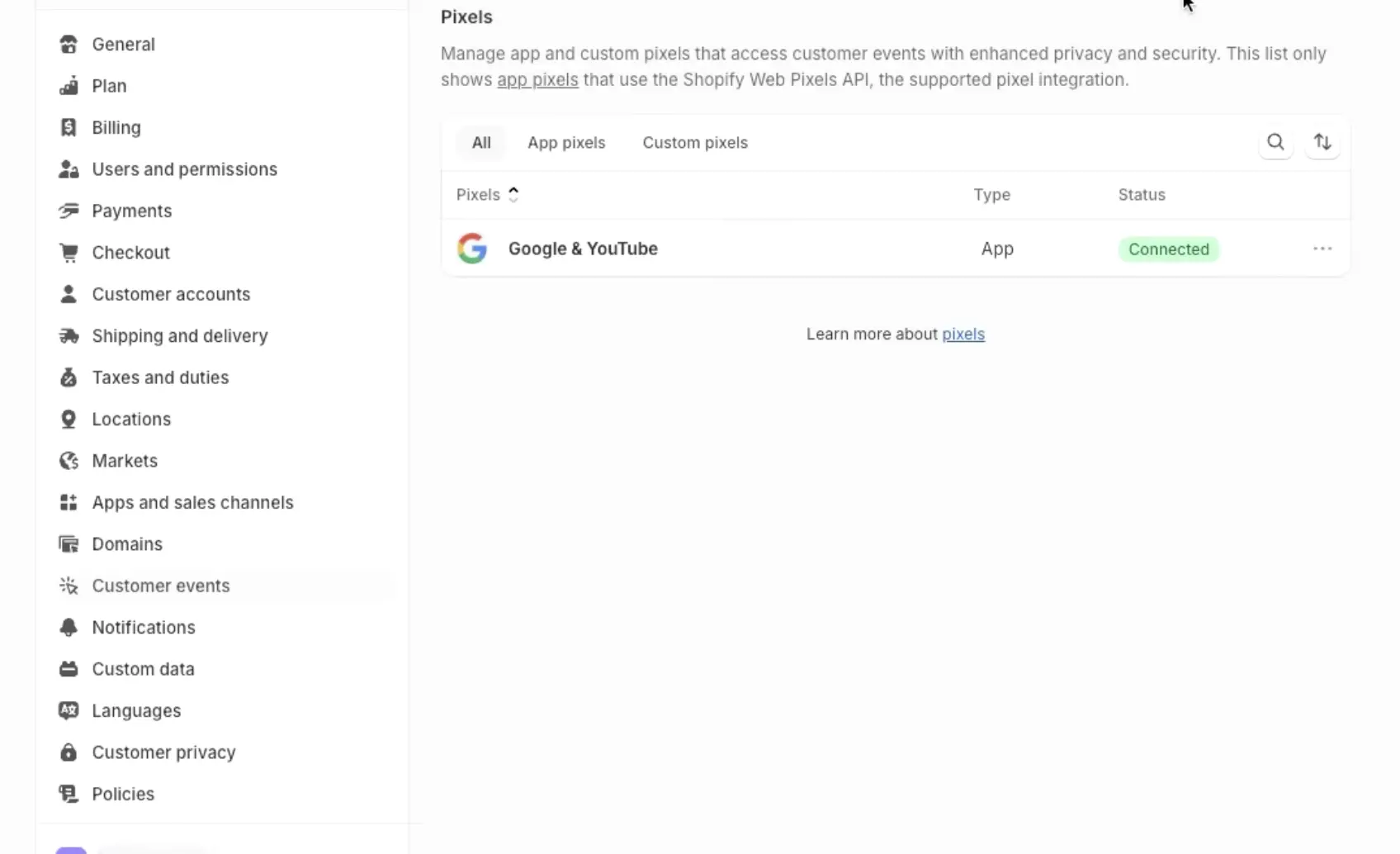
Shopify admin under Settings, Customer events: the pixel list with the tabs All, App pixels and Custom pixels contains a single entry, the Google & YouTube app pixel of type App with status Connected.
This is what the list should look like: one Google pixel, connected through the app. Any additional entry here is a candidate for double counting.

Search the code editor for gtag, UA-, AW- and GTM- and delete whole script blocks. Leave Liquid objects such as {{ content_for_header }} alone or you will break the page.

A custom pixel you never created

In February 2025 Shopify removed from the preferences page every Meta pixel and Google Universal Analytics tag not set up through the respective official app, converting them into custom pixels automatically. Only the legacy Analytics tags were affected, not GA4 and not Google Ads tags. A lot of shops therefore carry a custom pixel nobody deliberately built, and that is the one that keeps firing away alongside the app.

Start every audit in the same place. Open Settings, Customer events and make sure you can account for every entry there.

Transaction ID and counting method do different jobs

Google Ads discards the second conversion of the same conversion action when both carry the same transaction ID. The app sets that ID automatically. Deduplication only fires when the two values match character for character, so the moment one setup sends the order number as 1234 and another as #1234, Google sees two different orders.

If you build your own, use event.data.checkout.order.id instead of the checkout token. The token identifies the checkout. It also sits further forward in the payload, which is why people grab it by mistake.

The most common wrong reaction to inflated numbers is to switch the counting method from Every to One. That treats the symptom instead of the cause. For purchases Google explicitly recommends Every, because every sale represents real value. On One you lose genuine repeat purchases inside the conversion window, and those are the signal bidding needs.

An expensive classic

When you link the account, the app proposes three conversion actions: purchase, add to cart and checkout started. Only purchase is set as the primary action; the others get created as secondary, observation only, alongside page view, product view and search. It is still worth checking. In accounts that have grown over time, those actions tend to end up inside a goal that bids after all. Then Google counts several events per completed sale and the bidding strategy values a cart click as revenue. The ROAS in the account looks glorious while nothing arrives in Shopify. Check under Goals, Conversions that purchase really is the only primary action.

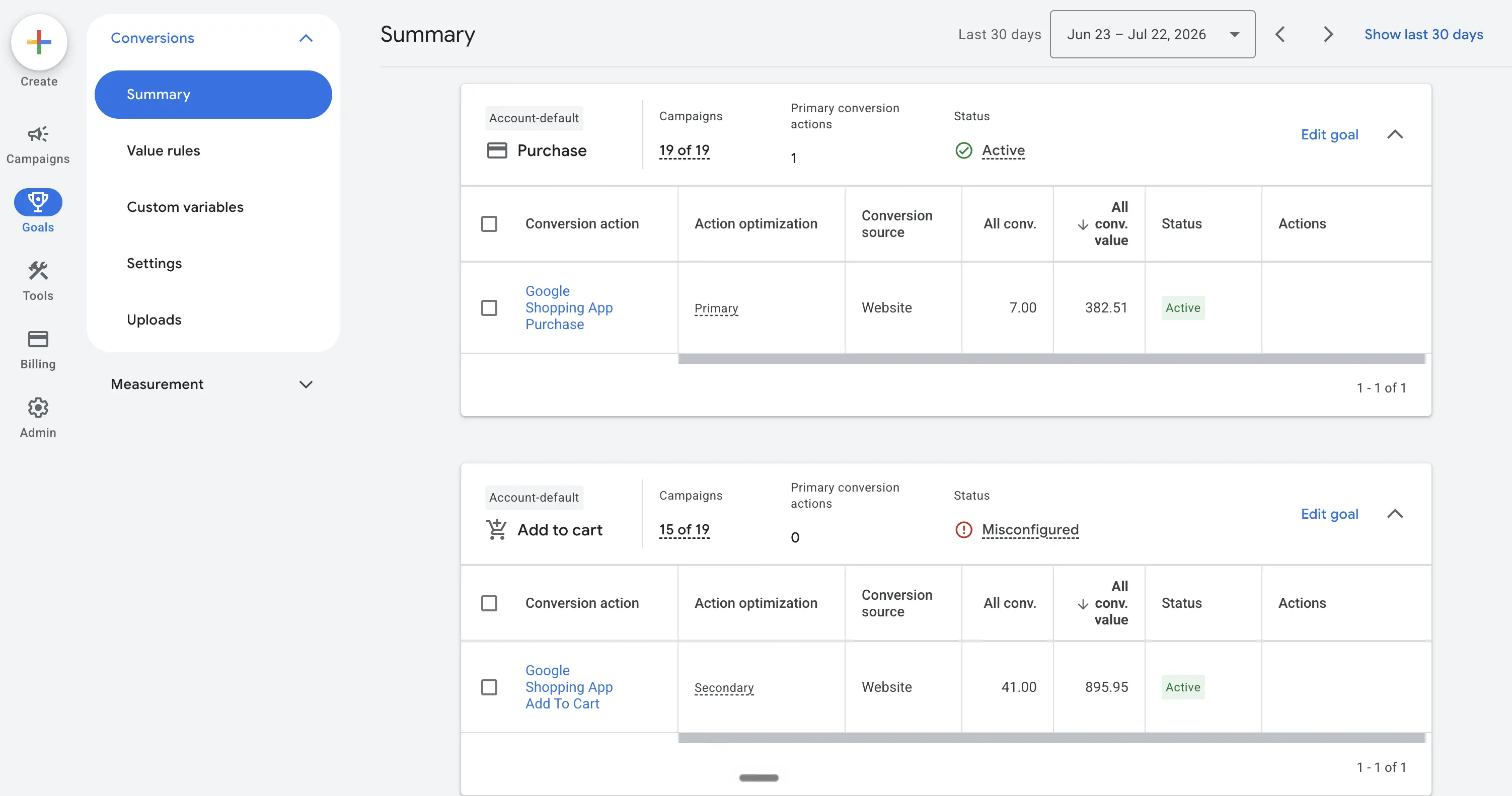
Google Ads under Goals, Conversions, Summary: the account default Purchase goal lists Google Shopping App Purchase as primary and active. The Add to cart goal lists Google Shopping App Add To Cart as secondary, with zero primary actions and a Misconfigured notice.
Only the purchase bids, the cart observes. The Misconfigured flag appears because the goal has no primary action. Here it is deliberate.
Example shop

That was what lay behind our ceramics shop's ROAS: great in the account, invisible in the bank. Add to cart and checkout started had drifted into the bidding goal at some point, and on top of that an old Google tag was still firing from a custom pixel created by Shopify's February 2025 migration. Four reported events per real sale. Fixing it was a ten minute job. The learning period that followed ate two weeks.

Post purchase upsells and what they do to your value

If you show an offer after the sale, Shopify fires the purchase event on the first upsell page rather than on the thank you page, and it does not fire again afterwards. The value sent to Google therefore comes from the moment before the upsell. Your Shopify order value keeps growing after that, while the figure in Google Ads stays where it was.

If that gap matters to you, send only the incremental amount, as a conversion adjustment carrying the same transaction ID. Never resend the whole order. The old Liquid trick people used on the order status page relied on Additional scripts, so that route is gone.

Takeaway

Pick one purchase path, keep purchase as the only primary conversion, and take the transaction ID from a single source. If you do only one thing after this section, open Settings, Customer events and check whether you can explain every pixel listed there.

Shopify ships its own cookie banner. You find it under Settings, Customer privacy, preconfigured for visitors from the EEA and the UK, and it looks like a finished solution. Then you read the decisive sentence in Shopify's own help centre. The banner governs Shopify specific tools, meaning Shopify cookies and Shopify pixels. Anything running outside that infrastructure keeps running.

So whether that matters depends on your setup. If your Google tracking runs through the Google & YouTube app, the automatic path applies, and Google states that consent mode is automatically enabled once the banner is active. If your tracking runs through your own custom pixel, say with your own Tag Manager container, Shopify does not pass the consent mode signals through automatically. What Shopify documents there is just its own gating, meaning a pixel does not load at all until the permissions it declares are present, and how to read the consent state. Deriving the gtag commands from that is on you. It only happens automatically for app pixels, that is, through the Google & YouTube app or a certified consent app. That gap is what breaks setups in practice. Your banner is up, your Shopify pixels behave, and your own container sits there waiting for a signal that never arrives.

Four Shopify categories, four Google signals

Shopify's Customer Privacy API defines four categories: analytics, marketing, preferences and sale_of_data. On Google's side there are four signals. ad_storage covers advertising cookies and device identifiers, ad_user_data covers sending user data to Google for advertising purposes, ad_personalization covers personalised ads and remarketing, and analytics_storage covers analytics storage. Version 2 added the middle two, and those are the ones missing most often.

There is no official mapping table between the two systems, from Shopify or from Google. The obvious reading, where the Shopify marketing category feeds the three advertising signals and analytics feeds the fourth, circulates in third party documentation but appears in no official documentation. If you are going to rely on it, put it through Tag Assistant first.

The copy and paste trap in Shopify's own tutorial

Shopify's official Tag Manager custom pixel example sets all four consent signals to granted. The detail underneath makes it worse. The block sets them as an update, not as a default, and only after the container has loaded. A default is missing from the example entirely. So there is no starting state at all, and shortly after load everything is bumped to granted regardless of whether the visitor agreed. Shopify qualifies this in a single sentence, saying these example settings might not match what your region's privacy legislation requires.

For EEA traffic you need the opposite. All four signals default to denied before any tag loads, and only the visitor's click on the banner triggers an update. Copy that block unchanged and your consent mode will pass a technical inspection while doing nothing for you legally.

Basic or advanced mode

Basic mode holds the Google tags back until the visitor has decided. Nothing leaves the page beforehand, not even the default status, and Google falls back on a generic model. Advanced mode loads the tags immediately with a default of denied and sends cookieless signals even on refusal, which lets Google build a model tuned to your account. Google has never put a number on how much data that modelling needs.

And nobody at Shopify or Google says which of the two the automatic path implements. A German legal assessment would turn on that single point. If the answer matters to you, your own account is the only place to measure it.

This is a legal call, not just a technical one

Section 25 of the German TDDDG requires consent, meeting the GDPR standard, before information is stored on or read from a user's device. Whether advanced mode is compatible with that, given it sends signals before the decision is made, has not been settled by a German court, and the supervisory authorities have not answered it consistently either. Basic mode is the more conservative option.

Do not make this call inside the marketing team alone. Bring in your data protection officer or your legal counsel and document the outcome. This is a description of the technology, and a legal review is a separate job.

What Google actually enforces

Google's EU user consent policy applies to end users in the EEA, the UK and Switzerland, regardless of where you are based. The policy itself states the consequence in general terms, namely that Google may limit or suspend your use of the product and terminate your agreement. The accompanying help centre gets more specific. There Google describes the process as a manual review by a Google team, allows a reasonable amount of time to make changes, and names the account level measure as suspension of ad personalisation, including remarketing, and of conversion measurement. Separate from all that is the standalone Consent Mode v2 requirement for EEA traffic, in force since March 6, 2024.

What reviewers write up: a banner that is missing or inadequate, no affirmative consent action such as a real confirm button, disclosure of data sharing with third parties that does not go far enough, consent signals implemented badly, and cookies that are already set before anyone has agreed to them.

How to work through it

  1. Take stock, about 30 minutes. Open Settings, Customer privacy and check whether the banner is active and for which regions. Then Settings, Customer events: which pixels are running at all, and which of them belong to Google?
  2. Check each banner surface separately. Shopify lets you control display individually for storefront, cart, checkout and customer account pages. Checkout display arrived in February 2025 and is off by default. If you built your setup before that, sessions that start straight in the checkout run with no prompt at all.
  3. Check your customer account domain. Banners and pixels only work on customer account and order status pages if the domain used for them is a subdomain of your storefront domain, for example account.yourshop.com under yourshop.com. If it sits elsewhere, consent given on the storefront does not apply there.
  4. Decide on a mode and document it. Basic or advanced, together with your data protection officer. With advanced mode, the cookieless signals belong in your privacy policy.
  5. With your own container, set the snippet yourself. Default denied on all four signals as the very first command, before the container loader. Then react to the Shopify event that fires when consent is given and send an update. Use the wait parameter so tags do not fire before an asynchronous consent tool has answered.
  6. Check the withdrawal path. Since February 2025 the Shopify banner can be reopened, so visitors can change their decision without clearing cookies. That was not possible before. If your shop still runs an older configuration, this is something you have to add yourself.

Testing, and why the usual test fails here

The standard route is Google Tag Assistant. You open your shop in it, interact with the banner, and check two states in the consent tab. On the earliest consent event all four signals must appear with a default of Denied. After clicking accept all, the most recent event must show Granted. An empty tab means consent mode is not implemented on the page at all.

On Shopify that test can lie to you. Shopify states explicitly that Tag Assistant's troubleshooting feature is not compatible with custom pixels and does not detect Google tags inside one. Track through a custom pixel and the standard tool reports a failure where there is none. That is what pushes people into a second tracking implementation, and from there straight into the double counting described further up.

You will get further with Shopify's own test feature for custom pixels under Settings, Customer events, with the network tab in your browser developer tools, and with the conversion action diagnostics in Google Ads, where the timestamp of the last recorded conversion tells you whether anything is arriving at all.

A failure pattern worth knowing

The Shopify developer forum documents a case where consent state was set twice, correctly to denied by the privacy app, then unprompted to granted by the pixel belonging to the Google & YouTube app. Shopify escalated the case internally and to Google. In any setup combining the app with a separate consent tool, look at the sequence of events, not just at the end state. If an update flips everything to granted and no user click triggered it, you have found your culprit.

Product data: where Google pulls every field from

On a self hosted shop you maintain an export format and decide which column comes from where. On Shopify the app decides that, and your only control is the fields on the product. Convenient enough, as long as you know which field feeds which Google attribute. Neither Shopify nor Google publishes that mapping in full, so the overview below marks what is documented and what is established convention.

  • Titletitlerequired, 150 characters max, must match the landing page
  • Descriptiondescriptionrequired, 5,000 characters max, no links
  • First media itemimage_linkrequired, no watermarks, borders or promotional text
  • Variant pricepricerequired, including VAT in Germany and most of Europe
  • Inventoryavailabilityrequired, values in_stock, out_of_stock, preorder, backorder
  • Variant barcode fieldgtinnothing else populates it, see below
  • Category fieldgoogle_product_categoryvia Shopify's standard product taxonomy
  • Product type fieldproduct_typeconvention, free text field, not the same as Category
  • Vendor fieldbrandconvention, only documented by feed vendors, verify in your account
  • Product ID plus variant IDid and item_group_idevery variant is its own offer, the product ID groups them
The precondition behind most missing products

A product only appears in the feed if it is published to both sales channels, Online Store and Google & YouTube. Products created through an import or by an app do not reliably inherit that channel assignment. In Merchant Center this shows up as an unavailable landing page, which sends people hunting through their attributes.

Fix it in bulk under Sales channels, Google & YouTube, Manage products. That view also shows you the sync status per product.

The English options requirement

Shopify's channel requirements contain one sentence that costs non English shops real money. Product options, including variants, need to be in English to sync. That covers option names and values, so Color rather than Farbe, Size rather than Größe, with English values to match.

A German shop naturally sets its options in German and then wonders why variants are missing or whole products never arrive. Switch the options to English in the backend and translate the storefront display through Shopify Markets or the translation tooling, or use a feed app that rewrites them on export. The first route calls for caution. Renaming options can touch variant URLs and theme logic, so test before you commit.

GTIN lives in the barcode field, and only there

On the product page each variant has a barcode field. That value, and nothing else, is submitted as gtin. Not the SKU, not a metafield. Only real manufacturer numbers with 8, 12, 13 or 14 digits and a valid check digit are accepted.

The classic slip is the internal item number landing in the barcode field because it happens to be empty, and Google rejects such offers. Google explicitly bars you from making up, guessing or borrowing values from similar products. The other constant failure is a spreadsheet import that strips the leading zero from an EAN and turns a 13 digit number into a 12 digit one with an invalid check digit. Format the barcode column as text when importing a CSV.

Own brand without a GTIN, the route Google itself recommends

The reflex is to set identifier_exists to no and watch the warnings disappear. Google sees it differently. If you manufacture the product yourself or have no official brand, the recommended route is to use your own shop name as the brand and supply a self assigned mpn. Do that and you do not need identifier_exists at all. The boundary matters. That freedom only applies if you really are the manufacturer. If you resell someone else's goods, you may not invent a part number and have to use the manufacturer's.

The attribute is meant for real exceptions such as handmade one offs, vintage and antique goods, books published before 1970 and certain spare parts. One rule always holds. Never send a GTIN and identifier_exists set to no at the same time.

Applying the attribute to every GTIN warning costs you reach. Products that do have an identifier you fail to submit cannot be matched to Google's catalogue and get limited exposure. Nothing in the interface calls that an error. The status reads as limited performance, and shops live with it for months.

Example shop

That was the second finding at our ceramics shop. Around half the catalogue was missing from Merchant Center because the options are called Größe and Farbe and therefore never synced. The rest ran with identifier_exists set to no, even though the shop has a clear own brand. The right answer here is brand name as brand, an own part number as mpn, and the attribute reserved for the hand thrown one off pieces.

Category, product type and collections do different jobs

The Category field belongs to Shopify's standard product taxonomy and feeds Google's product category. Set it as deep as you can. Google asks for the most specific category available and at least two levels of hierarchy. As soon as you set it, Shopify unlocks matching category metafields such as target gender, age group, colour and size, which happen to be the fields Google requires for apparel and accessories.

The Product type field, by contrast, is a free text field feeding Google's product_type. That is your own categorisation, and a useful segmentation dimension in Google Ads, because you can cut it however your campaign logic needs.

Collections, finally, are not a category tree. A product can sit in any number of them and has no single membership. People arriving from a self hosted shop tend to bring the assumption that category equals feed structure equals campaign structure. On Shopify that assumption does not hold. You build campaign structure from product type, tags and custom labels.

If your shop has been running a while

Shopify's standard product taxonomy is versioned and grows fast. Seven releases have shipped since July 2024, and the May 2026 one alone added more than 2,000 categories. Shopify points out that categories you used previously may have been modified or replaced. Category assignments from before that period are therefore not automatically still valid, and the newly surfaced category metafields sit empty on older products.

Price, tax and shipping

Google requires prices including VAT for every target country except the US and Canada, where tax must stay out of the price attribute. Europe is the default case here, not the exception. In Shopify this hangs on a single switch under Settings, Taxes and duties, labelled include sales tax in product price and shipping rate. Set it wrong for a European shop and you produce systematically wrong feed prices. If you sell into both Europe and the US, the country specific presentation is also controlled through your Markets settings.

On shipping, the limit already mentioned applies. Only rates in the general profile sync. Google's own advice for borderline cases rarely gets quoted. When in doubt, state slightly higher shipping costs in Merchant Center than on your site. Underreported costs trigger an error, overreported ones do not.

With discounts, what matters is where they take effect. Anything that only applies at checkout, so discount codes and automatic discounts, does not show up as a reduced price in the feed. Those belong in a separate promotions data source in Merchant Center, which Google reviews separately and serves as a special offer link. The product feed will never show you a sale price that lives in the cart. Promotional prices you set through the compare at price, where you lower the regular price and keep the old one as a reference, do travel normally as price and sale price.

That split produces the most common price conflict. A discount app lowers the amount shown on the product page while the feed still carries the full one. If a promotion is meant to run permanently, build it into the product price rather than into an app that only does the maths in the cart.

Dates worth putting in your calendar

August 18, 2026: the Content API shuts downIf you only use the Google & YouTube app, Google says there is nothing to do. If you run your own scripts, middleware or an older feed app built on the legacy interface, you have to migrate to the Merchant API before that date.
January 31, 2027: minimum image size of 500 by 500 pixelsUntil then the thresholds stay at 100 by 100 for most categories and 250 by 250 for apparel. Plenty of guides still quote those old numbers. Google has been sending warnings since April 2026. Shops shooting their own product photos are usually fine. Supplier images and image apps that write downscaled versions into the feed are not.
Do not reinstall the app as a reflex

Uninstalling and reinstalling is the most popular troubleshooting reflex and an expensive one on Shopify. As part of the move to the new interface, the format of item IDs changes. Changed IDs count as new items in both Merchant Center and Google Ads. That means fresh review, a reset learning period and no product performance history. Google advises against reinstalling while the migration is running.

Takeaway

The Shopify feed mirrors your product maintenance rather than standing apart from it. Every correction belongs in the product. Anything you repair inside Merchant Center gets overwritten at the next sync.

The disapprovals that hit Shopify shops most often

Diagnostics live in Merchant Center under Products in the Needs attention tab. The prioritised fixes toggle is on by default and hides issues with low impact, which is where missing identifiers, missing size and colour attributes and weak titles pile up. None of that gets a product disapproved. It just gets the product shown less often. The shop looks green and loses impressions anyway, so make a point of turning the filter off at every routine check.

Six patterns come up again and again on Shopify.

Price mismatch between feed and landing pageOn Shopify this is nearly always self-inflicted. Shopify Markets converts the displayed price per country, a currency converter app overwrites it in JavaScript after load, or a discount app lowers the page price while the feed carries the full one. Google requires the prominently displayed currency to match the feed currency.
Out of stock despite having inventoryLocations are the culprit here, not the feed. Shopify only shows a product as available if stock sits at a location enabled for order fulfilment. The reverse case exists too: products at zero quantity with continue selling enabled show as available on the page but out of stock in the feed.
Website not claimedEither the feed uses the myshopify.com domain because the app was connected before the primary domain was set, or a higher-level domain has already been claimed by another, long forgotten Merchant Center account.
Missing or invalid identifiersEmpty barcode field, SKU in the barcode field, a stripped leading zero, an invalid check digit. Google says changes take 24 to 72 hours to appear in diagnostics, so do not go back in after two hours and change things again.
Promotional overlay on the imageBadges like New or a percentage off belong in the theme rather than in the product photo. The first media item becomes your feed image, so it has to stay clean. A recrawl can only be forced by changing the file name.
Misrepresentation at account levelThis one takes down the whole account. The triggers are unclear return and refund terms, insufficient contact details, and no clear disclosure of total costs. Since October 2025 Google explicitly names non-delivery and non-functioning return processes as examples too.

Two sets of structured data on one page

Shopify themes output product markup. SEO, review and rich snippet apps often output a second set. If one block says in stock and the other says out of stock, or the theme lists every variant in a single block, Google reads the wrong value and automatic item updates go wrong along with it.

Run your product page through the rich results test and count how many product objects it emits. There should be one, carrying the price of the preselected variant. Recheck after every theme update, because updates overwrite manual edits without warning.

What SEO guides get wrong about robots.txt

Shopify's default robots.txt contains a dedicated block for the Google Ads crawler, introduced by Shopify's own comment line noting that this crawler ignores the file unless it is named specifically. Google's crawler documentation explains why. This bot ignores the global wildcard user agent and therefore has to be addressed by name. It does evaluate wildcards inside the path rules perfectly normally. Plenty of SEO tutorials suggest replacing the template with hand-written lines. Do that and the block disappears, and Shopify can no longer ship its regularly updated default rules.

The other common piece of advice is to pre-emptively block the variant parameter in the URL. Shopify demonstrably does not block that parameter as of July 2026, and blocking it makes exactly the variant landing pages your feed links to unreachable. Extend robots.txt.liquid additively, use the provided Liquid objects, and fetch the live file after every change.

What happens if it does escalate

For account level problems Merchant Center usually sends a warning email first, with a deadline of either 7 or 28 calendar days depending on the violation rather than a blanket 28 days. During that window products keep running, sometimes with reduced visibility. Google then checks again, and only if something is still unresolved does suspension follow. Every item is pulled from shopping ads and free listings. For severe violations the warning is skipped and suspension is immediate. A review request takes three to seven business days.

Do not request a review straight away

For a preemptive item disapproval caused by a price or availability mismatch, the requested review takes up to seven business days. If problems persist after the second attempt, a waiting period of a week can kick in during which the button is greyed out. It gets longer with every further unsuccessful attempt and cannot be shortened, not even by Google support.

Spot check ten to twenty affected products manually first. Feed price against visible price against structured markup against the amount at checkout, each in the target country's currency. Only submit once all four line up.

Who actually receives the warning

Product data notifications hang off the personal email settings of the individual user, not the account. If only an agency login or a former employee ever enabled them, that warning window runs out with the email unread. Set up at least two people with admin rights and enable notifications for both.

Campaign structure at €1,500 and at €20,000

The Google & YouTube app builds exactly one campaign type, Performance Max. The app is not being stingy. It is following where the channel has gone. According to Tinuiti's Digital Ads Benchmark Report for the fourth quarter of 2025, among merchants running both Performance Max and standard shopping campaigns, Performance Max accounted for 62% of Google shopping spend and 61% of shopping revenue. The revenue share sits slightly below the spend share. Tinuiti reports on the accounts it manages, so the sample leans heavily American. The trend still points one way.

Everything beyond that single campaign gets built in Google Ads, not in Shopify. So it pays to know which rules Google has written down and which ones the industry has invented for itself.

What Google really says

  • Performance Max has no minimum budget. Every euro figure you read on the subject is a rule of thumb. Google ties its recommendation to your own costs instead. The average daily budget should be at least three times the cost per conversion of the selected conversion actions. In practice, campaigns may spend up to twice the average daily budget on any given day, capped at 30.4 times that daily budget per month. Compare a single day against your budget and you learn nothing. Compare the month and you do.
  • Six weeks of leaving it alone. In its best practices Google recommends running new campaigns for at least six weeks while avoiding frequent changes to budget, bid strategy and targeting, because those reset the learning period. The learning period itself, according to the setup documentation, typically runs one to two weeks and in some cases up to six. After significant changes, expect one to two weeks or at least one full conversion cycle before things stabilise.
  • Target ROAS needs volume. For search and shopping campaigns Google specifies at least 15 conversions in the past 30 days. The same page sets no separate threshold for Performance Max, so carrying that number across is an inference, though a sensible one. An efficiency target only means something once there is stable conversion value underneath it.
  • Do not split without a reason. Google's own wording asks you to avoid creating separate campaigns unless they require different budgets, CPA or ROAS targets, or settings for business reasons. No documented budget threshold marks the point where segmentation starts to pay.
  • Assets come with a countable minimum. Each asset group requires at least 3 headlines, 1 long headline, 2 descriptions and one image each in landscape and square format. The ceilings sit at 15 headlines, 5 long headlines, 5 descriptions and 20 images per format. Portrait images and video are optional. Google recommends filling the slots but does not require it. If you do not supply your own video, Google builds one out of whatever the asset group already contains.

Your brand belongs in its own campaign

This is the one structural point even small accounts should not skip. Google documents a four step hierarchy here. At the top sits an exact match keyword identical to the query in a search campaign, where spelling corrections count but plurals and synonyms do not. Below that come phrase and broad keywords and search themes identical to the query, then a relevance based prioritisation, and only between equally ranked candidates does ad rank decide. A brand search campaign on exact match brand terms is therefore the most reliable way to keep brand queries out of Performance Max. Two things limit it. The hierarchy does not apply to shopping formats, and Performance Max can still serve if your search campaign is budget limited or more narrowly targeted.

Brand exclusions belong in the Performance Max campaign alongside it, under Campaigns, Settings, Additional settings. Google explains why they do more than negative keywords. They automatically block the brand name, common misspellings and related subsidiary brands, and brand lists match across languages and writing systems. The exclusion applies to search, shopping and YouTube search inventory. If you want brand shopping ads to keep running, there is a dedicated option for that in the same setting.

Three budget tiers for orientation

The split below is how we work, and Google prescribes none of it. It follows the logic that every additional campaign needs conversion volume of its own.

Up to €2,000 per monthOne Performance Max campaign across the catalogue plus a small brand search campaign, and that is the whole account. At this volume every further split is a bet against the learning period. Your leverage sits in the feed and the assets rather than in the structure.
€2,000 to €8,000 per monthPerformance Max for the core catalogue, brand kept separate, plus a search campaign on your highest margin category terms. This is where the search terms report earns a weekly slot in your routine.
€8,000 to €20,000 per monthHere segmentation starts paying for itself. Performance Max split by margin or catalogue group with its own target ROAS per group, search campaigns built out. If a specific channel needs steering, pull it out and run it as a Demand Gen campaign.
A stubborn misconception

You cannot switch off individual channels inside Performance Max. Google's own wording is that budget allocation per channel cannot be controlled directly. Since 2025 there is at least a channel report showing where the money goes, and more reporting and exclusion features have been announced for 2026. None of them hand you control over the channels. That lives in Demand Gen.

Two Shopify specifics around audiences

Shopify Audiences is not available to European shops. The myth that it is available has survived a remarkable number of debunkings. The feature requires Shopify Plus, Shopify Payments and a merchant operating in and selling to the United States or Canada. A great many guides omit that condition because they are written for the US market.

The route that does work runs through customer lists, which come from Shopify into Google Ads through a direct connection. The path runs through Tools, Data Manager, Connect product, Shopify. It requires the Google & YouTube app to be installed and a linked account that is not a manager account. Plan around a limit of 25 lists per import run. Those lists are what feed audience signals and the new customer goal in Performance Max.

That new customer goal comes in two modes. One bids higher for new customers without excluding existing ones. The other excludes existing customers entirely. For most shops the first is the right call, because at low volume the second cuts your conversion volume in half.

Example shop

Our ceramics shop at €1,500 belongs in the first tier. What it needed was fewer things running at once. Keep the one Performance Max campaign, add a brand search campaign, set brand exclusions, then leave budget and bid target alone for six weeks. The real work sat in the feed, where fixing the variant options finally got the whole catalogue serving.

The most expensive default settings in Google Ads

Campaigns created from the Shopify interface or from Merchant Center never show you these switches. They live in Google Ads only, and they sit at factory settings.

  • Location optionset to presence or interestCampaigns, Settings, Locations, Location options. For shops usually presence
  • Search partnersincluded by default in search campaignsfull placement reporting since August 2025, so measure before you decide
  • Auto applied recommendationsno master switch, one checkbox eachCampaigns, Recommendations, Auto apply
  • Counting methodwebsite actions default to Everykeep purchase on Every, move newsletter and contact to One
  • Attribution modeldata driven or last clickthe four older models are gone, do not switch mid season
  • Conversion window30 days after click, 1 day after impressionup to 90 days depending on the conversion source, Google suggests at least 7, never retroactive
  • Placement exclusionsbelong at account levelsince March 2024 they also cover search partners and Performance Max
  • Negative keywordsup to 10,000 per Performance Max campaignthey only affect search and shopping inventory, account level caps at 1,000

A word of caution on the auto applied recommendations. Nowhere does Google document that they are on by default, and the widespread claim that Google switches them on behind your back has no primary source behind it. What is documented is what can be enabled, and that is the list worth reading. Two of those items do real damage on a small budget. Automatically adding broad match keywords is one, expanding reach to search partners the other. Both widen your reach without touching your budget, so the same money spreads across more traffic of weaker quality.

Google is moving campaigns to AI Max in stages, starting September 2026

From September 2026 this affects search campaigns using text customisation, which is what automatically created assets are now called, and those using the campaign level broad match setting. Campaigns with dynamic search ads will not follow until February 2027, after Google pushed that part back in June 2026. Turn AI Max on and you get text customisation and final URL expansion enabled by default. Without exclusions, paid traffic will land on blog posts, account pages, sold out items and legal texts.

Better to do it on your own terms, which means setting three things beforehand: brand exclusions, location targeting and URL exclusions under asset optimisation. One step is a one way door. Once you disable the legacy automatically created assets feature, that legacy setting stays off for good, and the only route back in is text customisation inside AI Max.

Takeaway

Optimisation score is not a goal. Google describes it as an estimate of how well an account is set to perform, measured against how closely it follows Google's own recommendations. Track it as a KPI and you are optimising for compliance with Google rather than for contribution margin.

What is left once the setup is done

Shopify takes the feed mechanics off your hands. What it does not take is the data quality behind them, so that is what you are left maintaining. You stop watching an export and start looking after products instead. The engineering shrinks, the workload does not.

The jobs that keep coming back:

  • A quick Merchant Center scan every day or two. The product errors can wait; the account level issues cannot. A suspension realistically costs one to two weeks of revenue, because the fix, the review and the campaign ramp-up stack on top of each other.
  • The full list once a month. Switch the prioritised fixes filter off, otherwise the quiet data gaps stay invisible.
  • Search terms and exclusions. Since 2025 Performance Max has a real search terms report at the same granularity as search and shopping campaigns. Google advises weighting conversions higher than clicks there, because click through rate and CPM are misleading in Performance Max.
  • Add assets before you swap them. Google explicitly advises against removing asset groups based on cost per conversion or ROAS. Fill every slot first, then start replacing.
  • Ration your changes. Google gives no maximum step size for target ROAS changes; Smart Bidding reacts to large and small adjustments alike, immediately. For promotional days Google gives 30% increments as an example, with one to two conversion cycles of waiting in between. So after a target change, wait one to two conversion cycles before you judge, and do not touch the target twice within one cycle. Handle promotional periods through seasonality adjustments of one to seven days rather than budget jumps. Google advises against seasonality adjustments longer than 14 days, because Smart Bidding already accounts for seasonality on its own.

There are more built in tools than most people use. Attribute rules in Merchant Center transform feed data without you touching products, though they sit behind an add on and are no longer called feed rules since the rebuild. Google Ads scripts are the most powerful free option for budget alerts and feed watchdogs, but somebody has to maintain the JavaScript. Product Studio generates image assets right inside the Shopify app.

What no tool will take off you: policy and suspension cases, allocating budget by contribution margin, decisions about range and promotions, and knowing when to leave a learning campaign alone.

Where Cloudginny fits in

That routine is what we built Ginny for: an AI agent for Google Ads aimed at ecommerce shops in the €500 to €20,000 monthly budget range. Ginny reads your account and tells you in plain language where budget is leaking. Nothing changes until you approve it. The analysis is not deeper than yours, it just happens more often. Your manual audit lands once a week; the monitoring never stops.

You can ask Ginny anything about your account, have campaigns analysed, optimised or built from scratch. The questions worth asking are collected in the prompt library at cloudginny.com/ginny-prompts. The strategic calls stay with you. On the operational eighty percent, automation buys back hours you currently spend clicking.

Example shop

Our ceramics shop ended up with three levers on the table. Stop the duplicate conversion measurement, switch the variant options to English so the catalogue gets served, and separate the brand cleanly. Every one of them is a routine fix. They had sat there unnoticed for four months, because from the outside the account looked healthy.

Takeaway

Shopify gets you live quickly, which is why so many accounts never get looked at again. Whether something is running tells you nothing about your results. What matters is that each conversion counts once, with the right value, across the complete catalogue.

Questions Shopify merchants keep asking

Is the Google & YouTube app enough, or do I need a feed app?
For one channel, one language and one target country the app is enough. It costs nothing, it maps the important attributes for you, and it keeps to the 30 day refresh window. Feed apps solve a different set of problems. You want one when you distribute to several channels at once, when titles and exclusions need a rule engine, when a single shop has to serve several languages and currencies, when your campaign structure hangs on custom labels, or when you need access to arbitrary metafields. If you end up running both, keep an eye on the app's product sync. Google points out that it may need to be disabled, otherwise two sources write into the same account and you end up with duplicate offers.
Why does revenue in Google Ads differ from revenue in Shopify?
Google's documentation defines the reported value as the subtotal minus discounts, excluding shipping and tax, so measured against gross revenue you are already missing VAT and shipping. Google also books on the click date while Shopify books on the order date. Those two will never reconcile, and no fix exists for them. On top of that sit modelled and cross device conversions, view through conversions and the filtering of invalid traffic. Google's own documentation on data discrepancies names no percentage for what counts as normal, so every figure circulating out there comes from someone's blog rather than from Google. Compare over at least 30 days and establish your own factor across five real orders.
What happens on August 26, 2026 if I do nothing?
Shopify upgrades your thank you and order status pages to the new version automatically. Every customisation on the legacy pages is lost in the process, analytics scripts are removed, and Shopify only attempts a best effort migration into custom pixels with no guarantee attached. If your Google Ads conversion tag still sits in the additional scripts, purchase conversions dry up from that moment. Google Ads reports no error, only fewer conversions, and Smart Bidding responds by lowering bids. This applies only to shops that are not on Shopify Plus. The equivalent Plus deadline already passed on August 28, 2025.
Can I keep using Google Tag Manager on Shopify?
Technically yes, through a custom pixel, and Shopify even publishes a tutorial for it. But both sides will leave you on your own. Shopify calls custom pixels unsupported, and Google calls Google tags inside a custom pixel an unsupported implementation and will not troubleshoot it. You lose enhanced conversions, URL based conversions, cross domain measurement, preview mode and every trigger that touches the page document. If Tag Manager has to stay for governance reasons, run it as the single source, live with the missing features, and keep it well away from the app.
Why are some of my products missing from Merchant Center with no error shown?
Usually the product is published only to the Online Store sales channel and not additionally to Google & YouTube, which is the normal state for products created by import or by an app. Or the product options are not in English, and Shopify requires English for variants to sync. Or the app connection broke at some point, because of an expired authorisation for instance. Items then expire after 30 days, because that is how long Google keeps product data without a refresh. You will find the sync status per product under Sales channels, Google & YouTube, Manage products.
What budget do I need for Performance Max?
Google names no floor in euros, and every minimum budget figure you see quoted comes from someone's experience rather than from documentation. What Google does say ties the budget to your own costs, in that the average daily budget should be at least three times your cost per conversion. Budget size matters less than how many conversions you actually collect. Before you impose an efficiency constraint such as target ROAS, you need a stable base of conversion values, so with only a handful of conversions per week you are better off maximising conversion value without a target until enough data exists.
My conversions dropped after the consent rollout. Is the setup broken?
Not necessarily. In consent regions Shopify pixels only fire once the required permissions are granted, so a share of purchases is never observed at all. With the consent signals set correctly, Google models the missing cases, though it needs a run up period and a minimum volume of data that Google never puts a number on. Without those signals there is nothing to model from and the shortfall simply stays in your reports. So open the consent tab in Tag Assistant before you go anywhere near the bid target. Leave target CPA and target ROAS alone for the first two to three weeks, or you will add an erratic bid strategy to your measurement gap.
Do I need an agency for my Shopify shop?
You can handle the setup yourself with a guide like this one, and more easily on Shopify than anywhere else, because the channel takes the engineering off your plate. What comes afterwards is the harder part, because optimisation never finishes. Doing it yourself costs time and discipline more than money. An agency typically starts around €1,500 per month. An AI tool like Cloudginny takes over the operational routine from €99 per month and leaves the decisions to you.

The essentials in five points

  • Shopify handles the engineering. The data quality is on you, since everything Google knows about your products comes from the product fields in your shop.
  • Duplicate tracking costs more than missing tracking, and it is the mistake we see most often on Shopify. There are three ways to install a tag, and switching one on does not switch the others off.
  • If you are not on Shopify Plus, your conversion tracking has a deadline. August 26, 2026.
  • Products published only to the Online Store, and product options that are not in English. Both quietly cost you reach, and neither shows up as an error anywhere.
  • You set the account up once, then you keep optimising it for as long as it runs. If you would rather not take that on yourself, hand it off to an agency or let an AI agent like Ginny run the day-to-day.

This guide is updated regularly. Last reviewed: July 2026.

Sources

  • Official Shopify sources: help centre articles on the Google & YouTube channel requirements, product syncing, custom pixels and how to test them, customer privacy, and the thank you and order status page upgrade. Plus the developer documentation for the Web Pixels API, the checkout completed event, the Customer Privacy API and the standard product taxonomy, along with the Shopify changelog.
  • Official Google sources: Google Ads help on tag migration for Shopify, transaction IDs and counting methods, Performance Max optimisation, brand exclusions, auto applied recommendations and AI Max. Merchant Center help on the product data specification, data sources, disapproval reasons and policy enforcement. Developer documentation on Consent Mode, the Shopify event parameters and the Merchant API.
  • Legal framework: the official text of section 25 of the German TDDDG, plus Google's EU user consent policy and the audit documentation that goes with it in the Google Ads help centre.
  • Market data: Shopify's first quarter 2026 results release, Tinuiti Digital Ads Benchmark Report Q1 2026, Contentsquare Digital Experience Benchmark 2026, IRP Commerce Market Data.
  • Cloudginny: internal account data from ongoing ecommerce account management.

plans

Get Started

plans

Related articles

Our platform is designed to empower businesses of all sizes to work smarter and achieve their goals with confidence.
shopify google ads

Step-by-Step Success: How to Promote Your Shopify Online Shop Using Google Ads

In today’s fast-paced digital world, small business owners and budding marketers often find themselves bogged down by the complexities of managing Google Ads campaigns. Crafting the right keywords, writing compelling ads, setting budgets and continually optimizing can quickly eat into your schedule.

Read full blog
Google Ads for JTL Shops Guide for 2026

Google Ads for JTL Shops: 2026 Setup Guide

Most JTL shops burn through 20 to 30 percent of their Google Ads budget on clicks that never lead to a sale. Almost always, it comes down to the same three things: incorrectly configured conversion tracking, a patchy product feed, and a campaign structure that doesn't fit the budget. This guide shows you step by step how to build your setup cleanly in 2026, or how to audit an existing account, using a real example shop that was stuck at a ROAS of 2.1 for months. By the end, you'll know exactly what the problem is and what you need to change.

Read full blog

Google Ads and shop data in one view: Cloudginny is now on dash.bar

If you run a JTL or Shopware shop, you know the tab-switching: revenue and orders in dash.bar, ad spend in Google Ads. Cloudginny is now available on dash.bar by WebStollen. Your Google Ads and Microsoft Ads metrics land as a widget right next to your shop numbers, in one unified format. Less guesswork, one honest picture.

Read full blog