Google Ads for Shopware shops: Setting up the feed, tracking and campaigns
Christian Beeking
Co-Founder, Cloudginny
October 12, 202624 min read
As of October 12, 2026. Applies to Shopware 6.5 to 6.7, notes on Shopware 5 at the end.
If you search for “shopware google ads”, you end up with the Shopware documentation, with plugin pages and with a forum thread in which someone points out that the standard Shopware integration lacks “important events as well as the complete Google Ads implementation”. All three are right, and none of them takes you from start to finish. This guide does that for Google Ads for Shopware shops from version 6.5: connecting the accounts, building the feed via the product comparison, setting up tracking so that Google Ads actually counts orders, and then the campaign. Without an agency, and for the feed, without a plugin too.
You need four things that Shopware does not provide: a Google Ads account, a Google Merchant Center account, conversion tracking that reports order values to Google Ads, and one hour a week for maintenance. Shopware 6 supplies the product feed itself, via the “Product comparison” sales channel, which is included in every edition. And if you later hand the maintenance over to Ginny, you don't need a plugin for that either: Ginny works with your Google Ads and Merchant Center accounts, and nothing is installed in Shopware.
On top of that come the mandatory details without which Merchant Center approves nothing: a verified and claimed shop domain, shipping costs, a return policy, a legal notice and contact details on the website, and a checkout over HTTPS. A properly run Shopware shop has all of this anyway, it just has to be entered in Merchant Center. What Google Ads is in principle and how the auction works is covered in our basics article; here we go straight to the setup.
What Shopware does not provide
Google Ads account
Google Merchant Center account
conversion tracking with order values
one hour a week for maintenance
Mandatory details in Merchant Center
verified and claimed shop domain
shipping costs
return policy
legal notice and contact details
checkout over HTTPS
Shopware 6 supplies the product feed itself, via the “Product comparison” sales channel.
Linking your Google Ads account and Merchant Center
The link runs through two interfaces, and the second one is regularly forgotten: you send the request in Merchant Center, you have to approve it in Google Ads, and only then does product data flow into campaigns.
Two interfaces, two steps
1
In Merchant Center: send the request
Settings›Access and services›Apps and services›Add service›Google Ads›Link
Only after step 2 does Merchant Center appear in Google Ads as a data source for Shopping and Performance Max. Menu names as in the Google Help.
In Merchant Center, go via the gear icon to Settings, then “Access and services”, then “Apps and services”. There, click “Add service”, select Google Ads, confirm the account and click “Link”. In Google Ads, you then open the tools icon and go to the Data manager. Under “Connected products” you'll find the Google Merchant Center entry, where you click “Manage & link”. The open request sits in the “Received” tab, where you review and approve it. Both steps need admin rights, in Merchant Center for the request, in Google Ads for the approval. If you only have standard access, you won't see the option and will search in vain. Google's own instructions are in the Merchant Center Help.
Only after the approval does Merchant Center appear in Google Ads as a data source for Shopping and Performance Max campaigns. As long as the request is open, you can't create a Shopping campaign, and the error message about it is not much help.
Creating a Google Shopping feed in Shopware 6
In Shopware 6, the feed is created via a dedicated sales channel of the type “Product comparison”, which generates an XML file according to Google's specifications from a dynamic product group and makes it available under a fixed URL. So Google Shopping with Shopware needs no plugin. The process has four steps: create the product group, set up the sales channel, check the template, enter the URL in Merchant Center.
How the product data flows
Dynamic product groupdecides which items may enter the feed
Product comparison sales channelthe Twig template turns them into the XML file
Export URLpublicly accessible, protected by the access key
Merchant Centerfetches the file daily via scheduled fetch
Google AdsShopping and Performance Max campaigns
Shopware doesn’t push anything to Google. Google fetches the file.
Creating a dynamic product group
The dynamic product group determines which products go into the feed, and it is the right place to exclude incomplete items from the start. You'll find it under Catalogues, then “Dynamic product groups”. For the Google feed, a group with four conditions has proven itself: Active equals yes, price greater than zero, cover image exists, and EAN is not empty. Leave out the fourth condition if you sell private-label products without a GTIN; the template takes care of that later. The preview at the bottom right immediately shows how many products meet the conditions. If it says zero although the products exist, the products are usually not assigned to the storefront sales channel, which you'll select in a moment.
Setting up the “Product comparison” sales channel
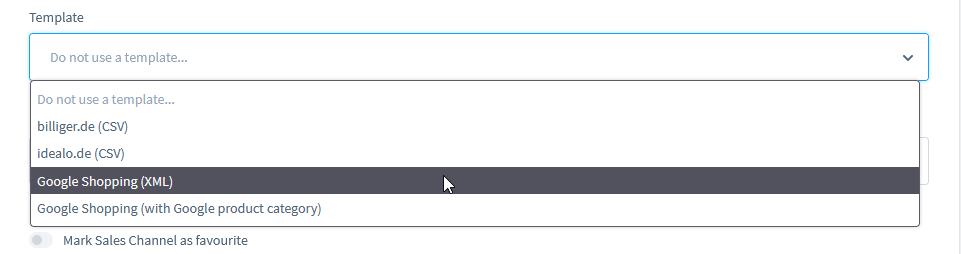
The “Product comparison” sales channel is the export channel itself. You create it in the sidebar via the plus next to “Sales Channels” and choose the “Google Shopping (XML)” template there. Then you give it a name and, under storefront sales channel, select your shop, the domain, the currency, the language and the customer group. The customer group decides whether the feed contains gross or net prices; take the end-customer group with gross display, otherwise Google will later reject every item for a price mismatch.
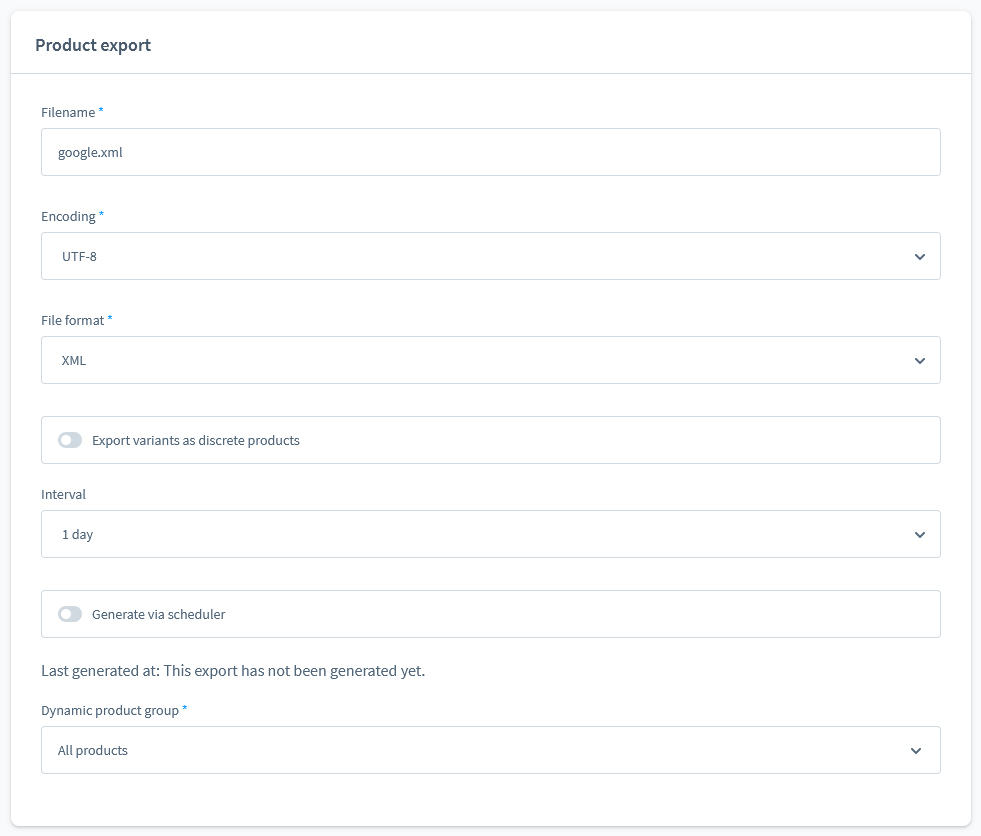
In the product export section you set the file name (such as google-shopping.xml), encoding UTF-8 and file format XML, activate “Product variants” if sizes or colours should run as separate items, select the dynamic product group from before and set the generation interval. For live operation, “Generate via scheduler” belongs activated and the interval set to one day; for this, the Shopware scheduler has to run on the server, i.e. bin/console scheduled-task:run via cron or as a service. Without the scheduler, the file is never regenerated, and weeks later Google still fetches the same state. For first tests you can set the interval to Live; Shopware then rebuilds the feed on every request, which takes minutes for large catalogues and can run into a timeout. The Shopware documentation on the product comparison describes every field.
Euro, not taken over automatically from the storefront channel
Customer Group
end-customer group with gross display, no B2B group
Filename
google-shopping.xml
Encoding and file format
UTF-8 and XML
Export variants as discrete products
on, if sizes or colours should be separate items
Interval
1 day, briefly Live for testing
Generate via scheduler
on, with bin/console scheduled-task:run via cron or as a service
Dynamic product group
the group from the previous step
Field names as in the Shopware admin.
Twig template for the product feed (to copy)
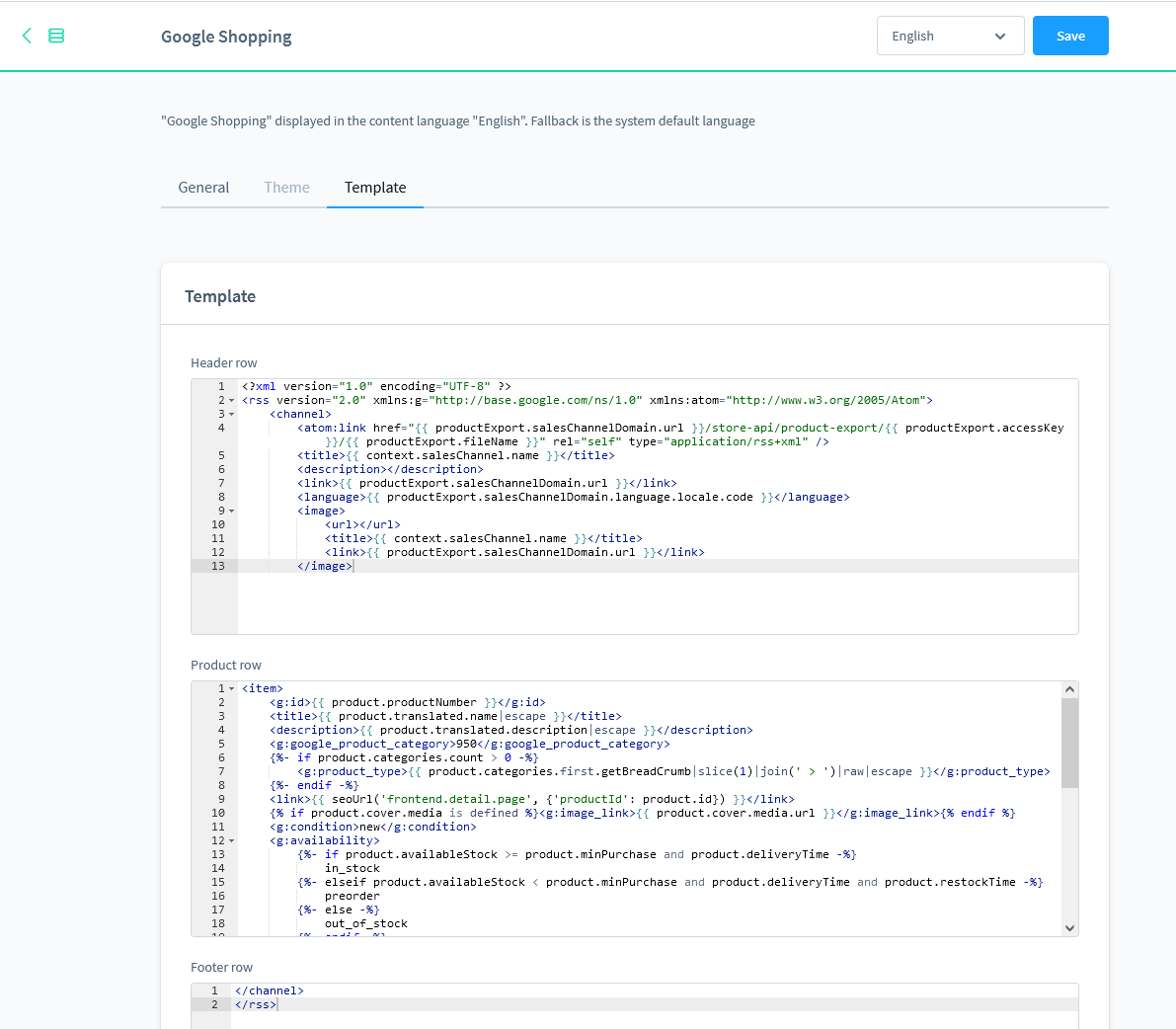
The supplied “Google Shopping (XML)” template is a usable start, but it and most templates from the web have four spots that regularly cause disapprovals in Merchant Center: the price with tiered prices, the availability, missing GTINs and variants without their own title. The following template fixes all four. It consists of a header row, a product row and a footer row, which is exactly what the three template fields in the sales channel are called.
The template tab holds the three fields you copy the template into. Shown here is Shopware’s default template. Screenshot: Shopware documentation
Header row
<?xml version="1.0" encoding="UTF-8"?>
<rss version="2.0" xmlns:g="http://base.google.com/ns/1.0">
<channel>
<title>My Shop</title>
<link>https://www.my-shop.com</link>
<description>Product data for Google Merchant Center</description>
Product row
<item>
  <g:id>{{ product.productNumber }}</g:id>
  {% if product.parentId %}<g:item_group_id>{{ product.parentId }}</g:item_group_id>{% endif %}
  <title>{{ product.translated.name|escape }}{% for option in product.options %} {{ option.translated.name|escape }}{% endfor %}</title>
  <description>{{ product.translated.description|striptags|escape }}</description>
  <link>{{ seoUrl('frontend.detail.page', {'productId': product.id}) }}</link>
  <g:image_link>{{ product.cover.media.url }}</g:image_link>
  <g:condition>new</g:condition>
  <g:availability>{% if product.availableStock >= product.minPurchase %}in_stock{% elseif product.restockTime %}backorder{% else %}out_of_stock{% endif %}</g:availability>
  {% set price = product.calculatedPrice %}
  {% if product.calculatedPrices.count > 0 %}{% set price = product.calculatedPrices.first %}{% endif %}
  {% if price.listPrice and price.listPrice.price > price.unitPrice %}
  <g:price>{{ price.listPrice.price|number_format(2, '.', '') }} {{ context.currency.isoCode }}</g:price>
  <g:sale_price>{{ price.unitPrice|number_format(2, '.', '') }} {{ context.currency.isoCode }}</g:sale_price>
  {% else %}
  <g:price>{{ price.unitPrice|number_format(2, '.', '') }} {{ context.currency.isoCode }}</g:price>
  {% endif %}
  <g:brand>{{ product.manufacturer.translated.name|escape }}</g:brand>
  {% if product.ean %}<g:gtin>{{ product.ean }}</g:gtin>{% endif %}
  {% if product.manufacturerNumber %}<g:mpn>{{ product.manufacturerNumber }}</g:mpn>{% endif %}
  {% if not product.ean and not product.manufacturerNumber %}<g:identifier_exists>no</g:identifier_exists>{% endif %}
</item>
Footer row
</channel>
</rss>
What the template does differently from the usual ones: for tiered prices it takes calculatedPrices.first, i.e. the price of the first tier, which a customer pays for a single item. Many circulating templates take .last, which is the cheapest quantity price, and Google compares it with the product page and rejects it. For items without stock but with a restock time, it writes backorder instead of preorder, because preorder is reserved for products that haven't been released yet. For items without an EAN and without a manufacturer number, it sets identifier_exists to no, so Google accepts the item without identifiers instead of flagging it. And for variants it appends the options to the title, so that “Running shoe model X” turns into “Running shoe model X 42 Blue”, “43 Blue” and “44 Blue”, which Google requires anyway. Shipping costs are deliberately not in the feed; they go into Merchant Center, more on that shortly. The code snippets in the Shopware documentation show further fields such as additional images or base prices.
Tip
Test the template with three products before the whole catalogue runs: one with a tiered price, one without an EAN, one variant. If these three pass Merchant Center without issues, the rest usually holds too.
Export URL and access key
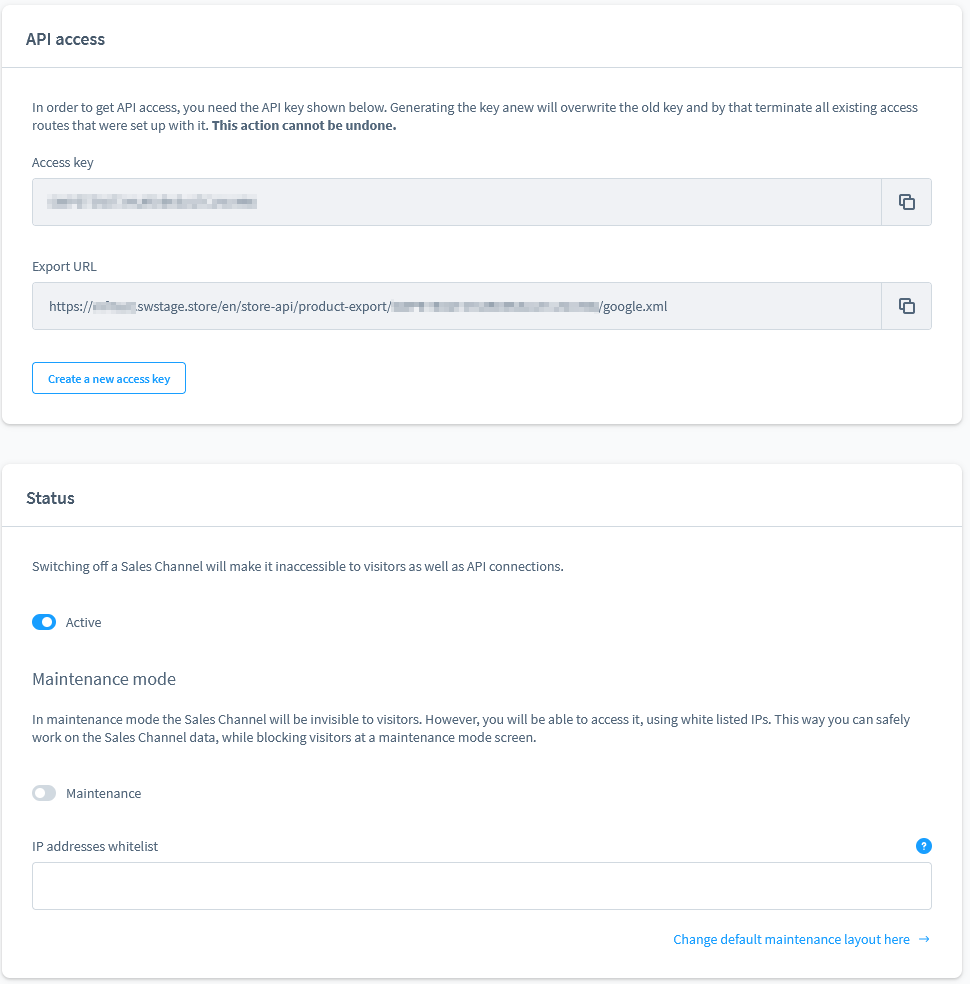
After saving, the export URL appears in the sales channel in the API access section next to the API access ID and follows the pattern https://www.my-shop.com/store-api/product-export/ACCESSKEY/google-shopping.xml, with Shopware generating the access key itself. This URL is publicly accessible, and the key is the only thing stopping anyone from downloading your entire catalogue with prices. So treat it like a password and generate a new one if it has been shared anywhere. Open the URL once in your browser: if you see XML with your products, the export is done. If you see an error page, the file hasn't been generated yet or the channel is inactive, more on that below.
API access with access key and export URL, below it the status: Active must be on, maintenance mode off. Screenshot: Shopware documentation
Adding the Shopware feed to Google Merchant Center
In Merchant Center you create a new source under Products, then “Data sources”, choose the option to add products via a link to a file, enter the export URL, select target country Germany, language German and a fetch time, and from then on Google fetches the feed itself every day. A manual upload is not necessary, and you don't need an API connection either: Shopware doesn't push anything to Google, Google fetches the file.
That is also why the shutdown of the Content API for Shopping doesn't affect you as long as you work via the product comparison. Google officially sunset the old interface on August 18, 2026 and replaced it with the Merchant API; since September 1, requests without an approved extension have been failing more and more often, and early 2027 is the final end. The scheduled fetch of a feed URL was never affected. Plugins that write products to Merchant Center via API now have to run on the Merchant API, otherwise the transfer breaks off without anything being visible in the shop.
Content API for Shopping sunset
Aug 18, 2026officially sunset, replaced by the Merchant API
Sep 1, 2026requests without an extension fail more and more often
Early 2027switched off for good
Not affected
The scheduled fetch of a feed URL, i.e. the product comparison route.
Affected
Plugins that write products to Merchant Center via API. They have to run on the Merchant API.
After the first fetch, Google reviews every item, which usually takes up to three business days. You can see the status under Products, then “All products”, or in the diagnostics. How Merchant Center is structured overall and what else needs setting up there besides the feed is covered in the Merchant Center practical guide.
How often does Google fetch the feed?
With a scheduled fetch, Google retrieves the feed once a day at the set time; more often only works via a manual “Fetch now” in the data source. What matters is that the Shopware file is fresh at that moment: set the interval in Shopware so that the scheduler rebuilds the file before Google's fetch time, for example Shopware at two in the morning, Google at four. Price changes from Shopware then reach Google within 24 hours at the latest. If you change prices during the day, you live with a mismatch between feed and product page until the next fetch, and that is the most common reason for disapprovals due to “price mismatch”.
A day in the feed, as an example
123
06121824
12 am: the scheduler rebuilds the file in Shopware.
24 am: Google fetches the fresh file.
3Example, 10 am: you change a price in the shop.
feed and product page disagree until Google fetches again
From the price change on, feed and product page disagree until Google fetches again the next morning. That is the most common reason for “price mismatch”.
What happens to the old “Shopping Ads with Google” channel?
According to Shopware, the “Shopping Ads with Google” sales channel that Shopware 6 shipped with in its early years has not been supported since October 2022, and the function only lives on as part of the paid “Social Shopping” extension, which is included in the Shopware Rise plan. If you still see such a channel in the admin, stop using it; Shopware itself points to the product comparison as the standard route in its documentation.
For shops on the Rise plan or above, Social Shopping also generates a feed URL that you add to Merchant Center; the difference from the product comparison is the ready-made interface instead of the Twig template. Nothing is transferred to Google automatically there either. For all other editions, the product comparison is the only native route, and it is enough.
standard route
Product comparison
included in every edition, feed via the Twig template, Google fetches the feed URL
extension
Social Shopping
paid, ready-made interface instead of the Twig template, also generates a feed URL
discontinued
Shopping Ads with Google
according to Shopware not supported since October 2022, stop using it
The most common feed errors in Shopware and how to fix them
Five errors account for most Merchant Center problems in Shopware shops, and none of them needs a developer: an export file that was never generated, a price without a currency code, net instead of gross prices, missing GTINs and shipping costs that don't match the website.
The five most common feed errors at a glance
Error
Cause
Fix
404 on the export URL
file never generated or sales channel inactive
channel active, no maintenance mode, scheduler running? For a test, set the interval to Live
“Unsupported currency in attribute: price”
price without currency code or with a comma, usually caused by |currency
number_format(2, '.', '') plus context.currency.isoCode, channel set to euro
Price mismatch
product.price, net customer group or wrong tier
product.calculatedPrice, customer group with gross display, calculatedPrices.first
Missing GTIN
EAN not maintained for branded products
add the EAN under Specifications, without a GTIN set identifier_exists to no
Shipping costs don't match
fixed values in the template
maintain shipping in Merchant Center under “Shipping and returns”
“item export not found” or 404
A 404 on the export URL means the file doesn't exist at this address yet, and the cause is almost always that the scheduler never generated it or the sales channel is inactive. First check whether the sales channel is active and not in maintenance mode. Then whether “Generate via scheduler” is activated and the scheduler actually runs on the server. For testing, set the interval to Live for a moment; the URL must then deliver XML immediately. If it does, the scheduler is the problem. The message “Item Export not found” in exactly this wording comes from Shopware 5, where it appears under Marketing, Product exports when the feed in question isn't set to active.
“Unsupported currency in attribute: price”
This disapproval appears when the price in the feed has no three-letter currency code or uses a comma as the decimal separator, and it is almost always caused by the Twig filter |currency, which outputs “19,99 €”. Google expects “19.99 EUR”. The template above produces the format with number_format(2, '.', '') followed by context.currency.isoCode. If you use a different template, search for |currency and replace the line. Also check that the “Product comparison” sales channel really is set to euro, because it doesn't automatically take the currency from the storefront channel.
Wrong prices: gross, net and product.calculatedPrice
Google compares the feed price with the price on the product page, and in Shopware a mismatch arises in three places: when the template uses product.price instead of product.calculatedPrice, when the customer group of the export channel displays net prices, or when the wrong tier is exported for tiered prices. product.price is the stored raw price without the sales channel's tax and price rules, product.calculatedPrice is what the customer sees in the shop. Always use the latter. The customer group of the export channel must be one with gross display; with B2B groups, the net price ends up in the feed. And for tiered prices, what was said about the template above applies: calculatedPrices.first, not .last. Which three disapproval reasons are the most common overall and how to find them is covered in Products disapproved in Merchant Center.
Missing GTIN
If the GTIN is missing for a branded product that has one, Google limits its reach or disapproves the item, and in Shopware the field for it sits under Specifications as EAN, for variants per variant. Add the EAN there, for larger catalogues via bulk edit or import. For private labels and one-offs that have no GTIN, the template sets identifier_exists to no, and Google then accepts the item without one. What doesn't work: an invented GTIN or the GTIN of another item; Google spots that by matching against the manufacturer database and, if it happens repeatedly, suspends the account.
Shipping costs don't match
Google also checks the shipping costs against the checkout, and the safest solution is to leave them out of the feed and set them up in Merchant Center under Settings, “Shipping and returns”, using the same rules as in Shopware. Fixed values in the template, such as “€4.95, free from €50”, are only right until someone changes the shipping rule in Shopware and forgets the template. In Merchant Center you can set up tables by order value, weight and region, and Google uses these values for the comparison. Only if individual items have different shipping costs, such as bulky goods, does a g:shipping block belong in the template, and then only for those items.
Setting up Google Ads conversion tracking in Shopware
With its built-in analytics function, Shopware 6 sends GA4 events including the purchase, but no Google Ads conversion tag, and without it Google Ads lacks the information Smart Bidding needs to learn. There are three ways to add it, and since Shopware 6.7 the cleanest of them works without a plugin.
Why the native analytics function isn't enough
The analytics settings in the sales channel send events such as view_item, add_to_cart, begin_checkout and purchase to Google Analytics 4, but they don't set a conversion tag with the Google Ads ID and the conversion label. Google Ads can then only see orders via a detour: you link GA4 to Google Ads and import the purchase event as a conversion. That works, but in our experience it counts fewer conversions than a direct tag, arrives with a delay and follows the GA4 attribution model instead of the Google Ads one. In the Shopware forum, a merchant reports that after switching to this route, not even five percent of their orders arrived in Google Ads. For a few hundred euros of budget a month the import may be enough; for Smart Bidding with a ROAS target you need the direct tag.
Extension, Tag Manager or custom template
Since Shopware 6.7.0.0, the tracking ID field in the sales channel under Analytics also accepts a Tag Manager container ID in the format GTM-XXXXXXX. That makes Google Tag Manager the recommended route: in the container you create a Google Ads conversion tag that fires on the purchase event and takes the order value, currency and order number from the data layer. Important: if you enter the GTM ID, remove the GA4 property ID from the field and run GA4 through the container as well, otherwise everything is counted twice.
On Shopware 6.5 and 6.6 the field doesn't exist yet, which leaves two routes. An extension from the Shopware Store that integrates Tag Manager or the Ads tag directly; according to the Store overview from September 2026, prices range from €9.99 to €215.99 a month, and the cheap ones are enough for the standard case. Or a template override by a developer that adds the Tag Manager snippet in storefront/layout/meta.html.twig and the data layer on the order confirmation page. That is half a day of work and has to be checked with every theme update, so it is only worth it if a developer is working on the shop anyway.
Which tracking route fits which Shopware version
Shopware version
Route
Cost
6.7.0.0 and later
Tag Manager container ID in the tracking ID field, conversion tag in Tag Manager
€0
6.5 and 6.6
Extension from the Shopware Store
€9.99 to €215.99 a month (as of September 2026)
any version
Template override by a developer
about half a day of work, check with every theme update
Whichever route you choose, check the result with a test order: in Google Ads under Goals, Conversions, the action must show an entry with the correct order value within a few hours. Only when the actual amount appears there, and not a fixed value, is the tracking usable.
Consent Mode and cookie banner
Without Consent Mode v2, Google Ads has been losing all conversions from users who reject the cookie banner since March 2024, and in Germany, depending on how the banner is designed, that is a considerable share of visitors. Since version 6.5.8.6, Shopware has shipped Consent Mode v2 in its basic variant: before consent, no Google script loads; after consent, everything runs normally. That is compliant, but only allows Google a rough extrapolation of the missing conversions, because no signal at all arrives before consent. You get the advanced variant, which sends anonymous signals without cookies and therefore allows much better modelling, with a consent tool such as Usercentrics, Cookiebot or consentmanager, which offer Shopware integrations and control Tag Manager. On top of that, you should activate the “Enhanced conversions” option in the sales channel; Shopware then sends the hashed email address to Google Ads after the purchase, and Google can attribute conversions that would otherwise be lost without a cookie.
Consent Mode v2: basic or advanced
Basic
Advanced
How you get it
built in from Shopware 6.5.8.6
with a consent tool such as Usercentrics, Cookiebot or consentmanager
Before consent
no Google script, no signal
anonymous signals without cookies
Missing conversions
only a rough extrapolation
much better modelling
Why the product ID doesn't match the feed
By default, Shopware passes the internal product ID, a 32-character UUID, in the GA4 events, while the feed uses the product number as g:id. For exactly this reason, a home-made plugin is circulating in the Shopware forum that replaces the UUID with the product number. As long as the two IDs don't match, Google can't assign the viewed or purchased products to an item in Merchant Center. For pure conversion counting, that doesn't matter. For dynamic remarketing, for the product reports in Performance Max and for Google's signals about which items sell, it is a problem. The fix is to send the product number as item_id in Tag Manager or in the extension; most tracking extensions have an option for this. If you use the template above, you already have the product number in the feed; only the tracking has to follow suit.
Why Google can’t match the item
Feed g:idSW10001product number
GA4 event, default item_id0189f3a2c4d7…32-character UUIDno match
GA4 event, switched item_idSW10001product numbermatches the feed
Example values. You switch this in Tag Manager or in the tracking extension.
Performance Max or Standard Shopping for Shopware shops?
A new Shopware shop starts with a Standard Shopping campaign and switches to Performance Max as soon as the account generates 30 to 50 orders a month through Google Ads. The reason is the data situation: Performance Max optimises fully automatically and needs conversions to learn from. An account without history doesn't provide them, and the campaign then spends the budget according to Google's preferences instead of your sales.
When to use which campaign
StartStandard Shoppingwith “Maximise clicks” and a maximum CPC limit or manual bids
from 15 conversions in 30 daysTarget ROAS possibleGoogle’s lower limit, stable only above that in our experience
from 30 to 50 orders a monthadd Performance Maxseparate asset groups per product range, brand name as an exclusion
Standard Shopping shows you the search terms, lets you exclude products individually and stagger bids by margin; in short, you see what is happening. Google names 15 conversions in 30 days as the lower limit for a ROAS target, and in our experience it only works stably above that. Until then, the campaign runs with “Maximise clicks” and a maximum CPC limit or with manual bids. As soon as there are enough orders, Performance Max is added, with separate asset groups per product range and with the brand name as an exclusion, so that PMax doesn't grab the searches for your shop that would land with you anyway. What Performance Max does for shops and where its limits are is covered on our page on Performance Max, the basics of the format in the Shopping guide.
Standard Shopping
shows you the search terms
exclude products individually
stagger bids by margin
you see what is happening
Performance Max
optimises fully automatically
needs conversions to learn from
without history it spends by Google’s preferences
separate asset groups per product range
How much does Google Ads cost for a Shopware shop?
Google Ads costs the same for a Shopware shop as for any other shop, because the shop system plays no part in the cost per click. Across our clients' Shopping and PMax campaigns, the median is €0.42 per click, with half of the accounts between €0.27 and €0.57. To start, a monthly budget of €500 to €1,500 is realistic. The only Shopware-specific costs are the tools: zero euros for the feed via the product comparison, zero euros for Tag Manager from Shopware 6.7, between €9.99 and €215.99 a month for a tracking extension on older versions, plus a consent tool if needed.
€0.42median cost per click, half of the accounts sit between €0.27 and €0.57
€500 to €1,500realistic starting budget per month
€0for the feed via the product comparison and Tag Manager from Shopware 6.7
Figures from our clients’ Shopping and PMax campaigns. The shop system plays no part in the cost per click.
The maths behind it, from cost per click via conversion rate to break-even by margin, is laid out with all figures in the guide Google Ads costs. For planning, one number is enough here: with the median values of our accounts, every order won through Google Ads costs around €22 in advertising. If your contribution margin per order is above that, the start pays off. If it is below, basket size or margin need to be on the table before the first campaign.
Where the €22 per order comes from
€0.42per click, median
÷
1.9%conversion rate, median
=
around €22ad spend per order
If your contribution margin per order is above that, the start pays off. Both values are medians from our client accounts, derived in the costs guide.
Running campaigns: what you check every week
After the launch, one hour a week decides the result, and in that hour you check four things: new disapprovals in Merchant Center, search terms without orders, campaigns at their budget limit, and whether the feed is fresh.
The weekly hour in four checks
New disapprovals in Merchant Center, mainly after price changes and range changes
Search terms without orders sort the report and add exclusions
Campaigns at their budget limit decide per campaign on the status “Limited by budget”
Feed freshness date of the last fetch in Merchant Center
In Shopware shops, disapprovals mainly show up after price changes and range changes, because the feed lags up to 24 hours behind. Across our client accounts, the median share of disapproved products is below one percent. When it happens, it rarely hits individual items, usually a whole category, for example after an import with the wrong tax class. Search terms without orders eat around ten percent of the budget even in well-kept accounts, more in neglected ones; sorting the report and adding exclusions once a week is enough to keep it there. For the budget, you look at which campaign carries the status “Limited by budget” and decide per campaign whether it deserves more or needs reworking. And for the feed, you check the date of the last fetch in Merchant Center, because otherwise a stalled scheduler only gets noticed when Google disapproves whole categories because of outdated prices.
What else belongs to a complete account check we have put together as a Google Ads audit with checklist. And if you don't have the weekly hour: Ginny takes over exactly these four checks and looks daily instead of weekly: disapprovals, search terms, budget caps, feed status. Every finding comes as a suggestion with a reason and an estimate of what it gains or saves in euros, and only your click puts it into effect. For Shopware, that means: you install nothing in the shop and need no plugin. Ginny connects to Google Ads and Merchant Center, that is where all the data she needs lives, and that is where she makes changes after your approval.
No time for the weekly hour?
Ginny checks disapprovals, search terms, budgets and the feed status every day and suggests every change with a reason. Nothing gets installed in Shopware for this.
Frequently asked questions about Google Ads and Shopware
Do I need a Google Shopping plugin for Shopware?
No. Shopware 6 generates the Google Shopping feed via the “Product comparison” sales channel in every edition, and Google fetches the file itself via scheduled fetch. A plugin is worth it if you maintain many feeds for several countries and platforms, want to set custom labels via an interface or need to transfer product data in real time via the Merchant API. For tracking, a plugin is the easiest route on Shopware 6.5 and 6.6, and no longer necessary from 6.7.
Why are my Shopware products not showing on Google?
Usually for one of four reasons: the products don't meet the conditions of the dynamic product group or aren't assigned to the storefront sales channel, in which case they are already missing from the feed. Merchant Center has disapproved them, usually because of a price mismatch or a missing GTIN. The campaign has excluded them or the budget isn't enough; then they are approved but get no impressions, and measured across our client accounts, only around a third of all approved items get any impressions at all within 30 days (median). Or the link between Merchant Center and Google Ads was never approved in Google Ads. Check in this order: feed preview in Shopware, diagnostics in Merchant Center, product report in the campaign, link in the Data manager.
How long does it take until the feed is approved?
Google usually reviews newly submitted products within three business days; with a new Merchant Center account, this is preceded by the account review with domain, legal notice, shipping and returns information, which can also take a few days. For a completely new setup, expect one to two weeks until the first ads run, and plan the launch accordingly ahead of seasonal peaks.
Can I set up conversion tracking without a plugin?
Yes, in three ways. From Shopware 6.7, you enter a Tag Manager container ID in the analytics settings of the sales channel and create the Google Ads conversion tag in Tag Manager. On older versions, you can link GA4 to Google Ads and import the purchase event as a conversion, with the drawbacks in accuracy and attribution described above. Or a developer adds the tag via a template override, which has to be checked with every theme update.
Do I need a plugin to use Cloudginny with Shopware?
No. Ginny is connected to your Google Ads account and your Merchant Center, not to Shopware. The feed comes from the product comparison, tracking runs via Tag Manager or a tracking extension as described above, and everything Ginny checks and suggests happens in the Google accounts. Nothing is installed or changed in Shopware, and no access is needed. That applies to every Shopware edition and every version from 6.5.
Does this also work with Shopware 5?
Technically yes, advisable no. Shopware 5 generates feeds under Marketing, Product exports, and a Google Shopping export with a Smarty template can be built there too. However, official support for Shopware 5 ended in July 2024, tracking plugins are hardly maintained any more, and Consent Mode v2 has to be retrofitted completely. If you are still starting Google Ads on Shopware 5, bring the migration to Shopware 6 forward and do the setup properly there once. We also have the same setup for the two other major systems, once for JTL shops and once for Shopify shops.
Christian Beeking is co‑founder of Cloudginny, the AI agent for automating Google Ads in e‑commerce. Before Cloudginny, the team managed more than 100 million euros in Google Ads budget for brands such as MediaMarkt, Cisco and Bose, and has now poured that knowledge into Ginny. Cloudginny is an official Google Partner, a WebStollen partner and part of the German Accelerator.
Search for "Google Ads audit" and what you mostly get is offers: agencies that will examine your account for free, and a contract at the end. That does not answer the question underneath: what is actually being checked, how much of it can I do myself, and what does the rest cost? This article walks through the nine areas of an audit, says for each one where the money typically leaks, and attaches a checklist you can tick off.
Ryze AI is the cheaper multichannel autopilot: $89 flat for Google, Meta, TikTok and LinkedIn. Cloudginny is a Google Ads specialist with a German company behind it, Merchant Center depth and an approval model. This comparison puts prices, channels and control side by side, and says plainly where Ryze wins.
Search for Google Ads management software and you land on Optmyzr, Adalysis or Opteo. They are good tools, just built for somebody who already knows Google Ads: a marketer who writes rules and knows what to do with forty improvement suggestions. Most online shops do not have that person. This article explains what the classic platforms actually do, what an AI agent does differently, which model fits when, and what neither of them can do.