Google Shopping at Christmas. Getting delivery times and availability right in your feed
Christian Beeking
Co-Founder, Cloudginny
October 26, 202623 min read
Last updated: October 26, 2026. Hermes and DPD deadlines for 2026 will be added as soon as the carriers publish them.
Prices, promotions and bids for the weeks before Christmas are covered in our article on Google Shopping Ads on Black Friday 2026. This one is only about what decides afterwards whether an order still ends up under the tree: the delivery time Google calculates for your Shopping ads and the availability your feed reports. Google calculates both from your data, Google can show both to the customer before they click, and both are wrong more often in December than in the rest of the year. Since Google removed free product listings from the regular search results across the EEA in September 2026, the Shopping ad is also the most important way for merchants in Germany to appear with product tiles in Google Search. If Google shows a delivery date there, it's the first delivery promise the customer sees, even before the click.
The article works backwards, from December 24 back to the settings you check now, in October, for Google Shopping in the Christmas season.
By when do orders have to ship to arrive before Christmas?
For standard parcels within Germany, the last pickup day for delivery by Christmas Eve is Tuesday, December 22, 2026, for DHL business customers, and Monday, December 21, with drop-off by 12 noon, for GLS. Hermes and DPD haven't published their 2026 deadlines yet. In 2025, it was December 19 for both, at Hermes for drop-off at a parcel shop and at DPD for delivery on December 23.
Last shipping days for delivery by Christmas Eve 2026
Carrier
Last shipping day within Germany for delivery by Dec 24, 2026
not yet published for 2026, 2025: Friday, December 19, drop-off at a parcel shop by 12 noon
to be added
DPD
not yet published for 2026, 2025: Friday, December 19, for delivery on December 23
to be added
These deadlines apply to the normal case. DHL excludes small parcels and bulky goods from the promise and recommends one to three extra days there. For parcels to other European countries, the deadlines fall between December 17 and 21 depending on the country, and for the rest of the world the deadline is as early as December 7. December 24, 2026, is a Thursday. DHL still delivers that day but no longer picks up shipments, and delivery rounds usually end in the morning. According to its Christmas operating hours, DPD only delivers Prio and Express shipments on December 24 and 31, no Classic parcels, and doesn't pick up on either day. Anything you hand over on December 23 has a chance, not a promise.
For your shop, that means your own order deadline comes before the carrier's, earlier by your handling time. If DHL picks up on December 22 and you need a day to pack, the order has to be in your system on December 21 by your own cutoff. If you ship the same day, you can accept orders until the morning of the 22nd. This calculation is the basis for everything Google shows in Merchant Center, which is exactly why it's worth looking at how Google calculates.
Your own order deadline, using DHL as an example
One day to pack
Tue, Dec 22last DHL pickup
−
1 dayyour handling time
=
Mon, Dec 21orders until your cutoff
Same-day shipping
Tue, Dec 22last DHL pickup
−
0 daysyour handling time
=
Tue, Dec 22orders until the morning
The same calculation works for every carrier: its deadline minus your handling time.
How does Google calculate the delivery time in a Shopping ad?
Google calculates the delivery date from three values you set in Merchant Center: order cutoff time, handling time and transit time, counted in business days. The customer is shown the latest date that results from them, never the earliest. Google can show it as an annotation in Shopping ads and free listings. Whether and when that happens is up to Google.
Google's own example from the help page on estimated delivery time: an order on a Wednesday after the cutoff, a handling time of 0 to 1 day and a transit time of 3 to 5 days. Because of the cutoff, handling only starts on Thursday, and with the weekend in between, that comes to 6 to 9 calendar days. The customer sees the 9. That's why many merchants see a longer delivery time on Google than they actually need: Google takes the maximum of each building block and adds them up.
Google’s example
Order on a Wednesday after the cutoff
0 to 1 dayhandling time
+
3 to 5 daystransit time
=
6 to 9 dayscalendar days with a weekend in between
What the customer sees
Day 9Google shows the latest date, never the earliest
The order comes in after the cutoff, so handling only starts on Thursday. That is already included in the 6 to 9 days. Source: Google help page on estimated delivery time.
The order cutoff is the building block most shops have never set. If the field stays empty, Google uses 8:00 a.m. Pacific Standard Time according to its help page, which is 5 p.m. in Germany. A shop that really only accepts orders until 2 p.m. for same-day shipping promises orders placed between 2 and 5 p.m. a day too early. A shop that accepts orders until 6 p.m. gives away an hour of head start.
Order cutoff: your shop versus Google’s default
12
12:0013:0014:0015:0016:0017:0018:0019:00
12 p.m.: your actual cutoff, as an example
25 p.m. German time: Google’s default if the field stays empty (8:00 a.m. Pacific Standard Time)
Orders in between: Google promises delivery a day too early
A delivery date only appears if handling time and transit time are both set. If either is missing, Google doesn't calculate a delivery date, and wherever Google shows delivery dates, the competitor with one has the edge in December. Alternatively, Google can calculate the transit time from the carrier's data, in which case you only need to provide the cutoff and the handling time.
Why is Google showing the wrong delivery date?
If Google shows a delivery date well beyond your actual delivery time, one of the three building blocks is almost always missing, or a default you never set is kicking in. Since 2024, posts have been piling up in the Shopify Community from merchants whose ads show “8+ days” or a date three weeks out even though they deliver in two days. The answers in the community are clear on two points: Google adds the delivery annotations automatically, AI-based by its own account, and they can't be removed. All you can correct is what Google calculates, meaning cutoff, handling time, transit time and business days.
The second common reason is a contradiction between feed, account settings and product page. If the product page says “1 to 3 business days” and the account has a transit time of 5 days, the account wins. If the feed has its own handling time for a single product, it overrides the account setting. If you don't know where which number comes from, have the feed reviewed once: feed check from €190.
Which holidays does Google take into account for delivery times? Not December 24
Google knows eight public holidays for Germany, and Christmas Eve isn't one of them. Google's holiday list for Germany contains Good Friday, Easter Monday, Labour Day, Ascension Day, Whit Monday, German Unity Day and the first and second days of Christmas. December 24 is missing, December 31 is missing, and New Year's Day is missing too.
Google’s holiday list for Germany
Google knows these eight days
Good Friday
Easter Monday
Labour Day
Ascension Day
Whit Monday
German Unity Day
First day of Christmas
Second day of Christmas
These days are missing
December 24
December 31
January 1
Google counts whatever is missing from the list as a normal business day.
For the delivery time calculation, that means Google counts December 24, 2026, a Thursday, as a full business day for handling and transit, even though DHL no longer picks up shipments that day and delivery ends at midday. The same goes for New Year's Eve, also a Thursday, and for January 1, 2027, a Friday, when nobody delivers in Germany. Without a setting of your own, Google can show a delivery date on New Year's Day in your ad.
December 2026 from Google’s point of view
Mon
Tue
Wed
Thu
Fri
Sat
Sun
21Dec1
22Dec2
23Dec
24Dec3
25Dec
26Dec
27Dec
28Dec4
29Dec
30Dec
31Dec5
1Jan5
2Jan
3Jan
business day for Google
holiday on Google’s list
counts as a business day for Google
weekend
1December 21: last shipping day at GLS, drop-off by 12 noon
2December 22: last DHL pickup day for delivery by Christmas Eve
3December 24: Christmas Eve. A business day for Google, DHL no longer picks up
4December 28: earliest delivery date for an order placed on the 23rd, with one day of handling
5December 31 and January 1: New Year’s Eve and New Year’s Day, normal business days for Google
Saturdays count as business days or not depending on the setting, more on that below.
And what Google counts as a business day isn't clear-cut either. The help page on handling business days names Monday to Friday as the default in one place and Monday to Saturday in another. Depending on which variant applies to your account, every delivery date that spans a weekend shifts by a day. Don't rely on either default. Set the business days explicitly, more on that below.
What do you change in Merchant Center for December?
Four settings: raise the handling time to the value you really need at peak, move the cutoff earlier to your real time in the German time zone, and set the business days explicitly for handling and transit. Fourth, on the day after your carrier's deadline, set the handling time high enough that no delivery date before Christmas appears that you can't keep.
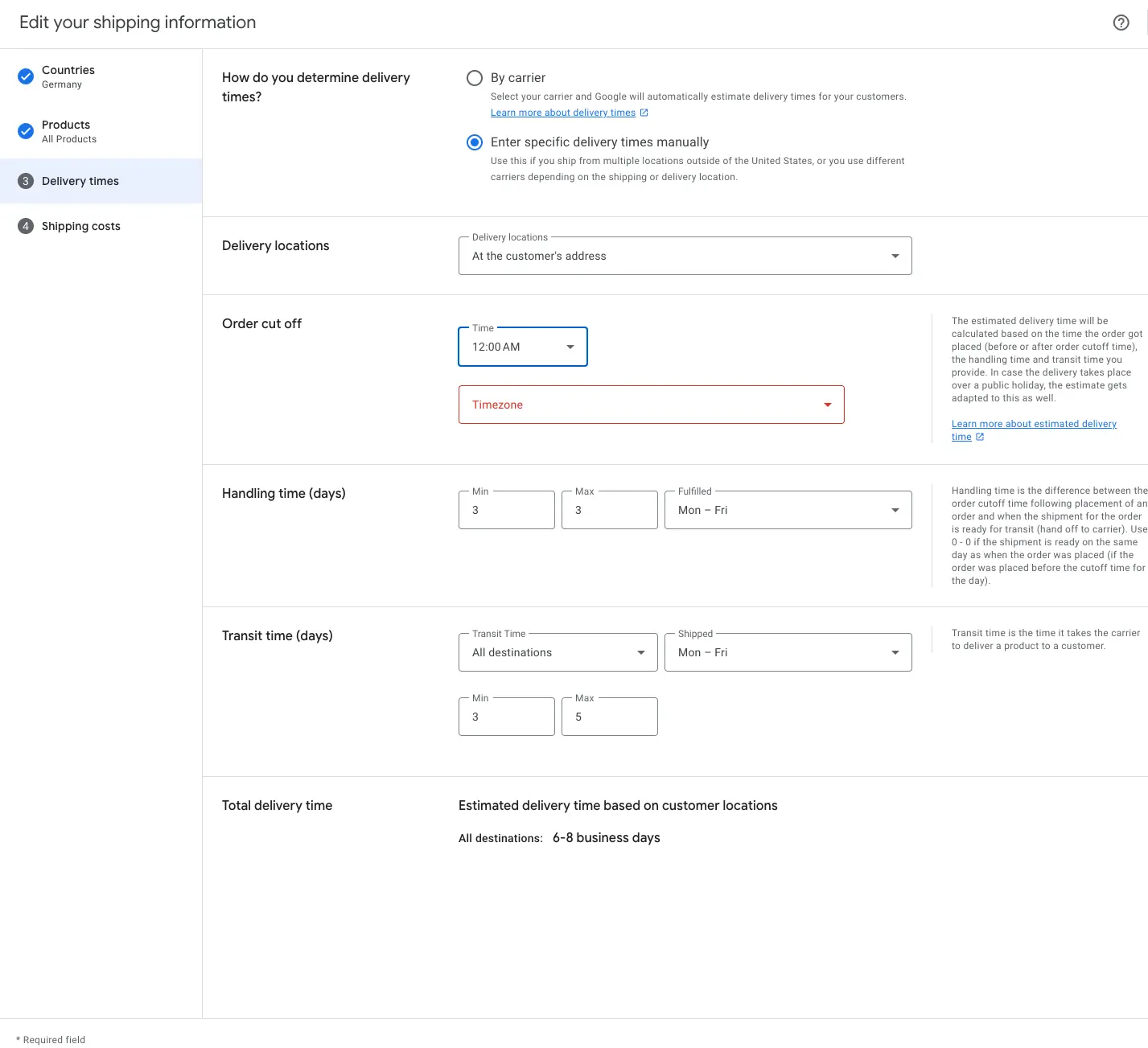
Under Shipping and returns, you set the order cutoff with its time zone, the handling time and the transit time. The business days are in the “Fulfilled” and “Shipped” fields. Screenshot: Google Merchant Center
Handling time is too low almost everywhere in the Christmas season. If you pack in four hours in June, you need a day in the second week of December and two in the third. Set max_handling_time to the realistic peak value, because Google calculates with the maximum anyway, and a value that's too low produces promises the customer experiences as a delay. After Christmas, you set it back.
The order cutoff belongs in the feed per shipping option, as sub-attributes of shipping: handling_cutoff_time in HHMM format and handling_cutoff_timezone as Europe/Berlin. Without a time zone, Google uses the time zone of the delivery destination, which happens to fit in Germany, and for shipping to Austria, Switzerland and most EU countries too, but not for the UK, Portugal, Greece or Finland. Per product, there's also the standalone handling_cutoff_time attribute with the sub-attributes cutoff_time and cutoff_timezone, but the values inside shipping take precedence over it. What the standalone attribute can't do: override account settings. If you only maintain shipping in the account, set the cutoff in the Merchant Center shipping settings instead. If you need different times for individual products, add them as sub-attributes inside shipping, where they then take precedence over the account. Google describes the details in the help page on order cutoff time.
With a caveat
The standalone attribute also comes with the sub-attribute disable_delivery_after_cutoff. If it's set to true, Google no longer shows a delivery time after the cutoff. That sounds like the perfect switch for December 22 at 12 noon, and maybe it is. However, Google describes the feature explicitly for same-day delivery, to control whether next-day delivery is still offered after the cutoff. Whether it works as a Christmas switch the way you'd hope isn't documented. If you try it, check the result in the ad preview before relying on it.
You set the business days with shipping_handling_business_days for handling and shipping_transit_business_days for transit, each as a list or range, such as M-F for Monday to Friday or M-S if your carrier delivers on Saturdays. That settles the Saturday contradiction in Google's default for your account. Important: both attributes only know weekdays, not calendar dates. You can't exclude December 24 this way, which leaves the handling time.
The shipping attributes for December at a glance
Attribute
What it does
Example
max_handling_time
handling time in business days, Google calculates with the maximum
2
handling_cutoff_time
order cutoff in HHMM format, sub-attribute of shipping
1400
handling_cutoff_timezone
time zone of the cutoff, sub-attribute of shipping
Europe/Berlin
shipping_handling_business_days
business days for handling, weekdays only
M-F
shipping_transit_business_days
business days for transit, weekdays only
M-F or M-S
disable_delivery_after_cutoff
hides the delivery time after the cutoff, documented for same-day delivery
true
Hence the fourth step: on the day after the carrier's deadline, for DHL that's December 23, set max_handling_time to at least one day, or two if your transit time is only one day. The reasoning: an order placed on the 23rd with one day of handling ships on the 24th at the earliest, which Google counts as a business day. After that, the 25th and 26th drop out as holidays and the 27th as a Sunday, so the first transit day is December 28, and that's then also the earliest date Google gives. If the handling time stays at zero, on the other hand, Google still promises the 24th for orders placed on the 23rd with one day of transit, even though your carrier no longer picks up the parcel. It's less elegant than a switch, but it's the way that's documented to work.
An order on December 23, one day of transit
Handling time 1 day
Wed, Dec 23order
Thu, Dec 24shipping, a business day for Google
Dec 25 to 27holidays and Sunday don’t count
Mon, Dec 28earliest delivery date on Google
Handling time 0 days
Wed, Dec 23order and shipping
Thu, Dec 24delivery date on Google, even though DHL no longer picks up
Google counts December 24 as a business day. Without handling time, that creates a promise no carrier can keep.
Also worth doing: in Merchant Center under return policies, create a seasonal return policy that takes gifts back until mid-January. Google can show the return policy in the ad, and in December a long return window is a reason to buy for many people giving gifts. Also check the shipping costs against the checkout, because express surcharges the shop introduces in December often aren't in Merchant Center and lead to disapprovals for mismatches. How the shipping settings in the account are structured overall is covered in the Merchant Center practical guide.
As a schedule for your calendar, with the DHL dates as an example:
Your schedule until January, with the DHL dates
WhenWhat you do in Merchant Center
Now, OctoberSet the cutoff (handling_cutoff_time, time zone Europe/Berlin), set business days explicitly, check handling and transit times against the product page
Early Decembermax_handling_time to the season's peak value, create a seasonal return policy, check shipping costs against the checkout
December 21Last day with a regular delivery promise, state your own order deadline on the product page
December 23max_handling_time to at least 1, or 2 with one day of transit, so that no delivery date before the 28th appears
December 27 to 31Check delivery dates, Google counts December 31 and January 1 as business days
Early JanuaryReset handling time and return policy, products with backorder back to in_stock
What happens after the last delivery day?
After December 22, the Christmas season in Google Shopping carries on, just with different buyers: anyone ordering now knows it will arrive after the holidays and buys vouchers, gifts for themselves or whatever was missing under the tree. Switching off campaigns is the most expensive mistake of that week, because every pause sends the bid automation back into the learning phase and the business between Christmas and New Year starts without data.
What makes sense in these days, in the order in which we adjust shop accounts.
Make the delivery date on Google honest, as described above, so that no buyer sees a promise on December 23 that turns into a disappointment on the 27th.
Bring digital vouchers into play as a product group of their own, because they're the only product that still arrives on time at 2 p.m. on December 24.
Shift the budget between product groups, away from typical gift items towards what people buy for themselves after Christmas, and don't reflexively lower the bids there, because click prices usually fall in the last week of December while people keep buying.
And if you have click and collect or a physical store, show it now through local product listings, because “pick up today” is the last real delivery promise before the holidays.
All of these are decisions at product group level, and you don't make them sitting in the account at 5 p.m. on December 23. With Shopping campaigns where you decide what runs, you decide in advance which groups keep running after the deadline and which get throttled. And if you'd rather not keep track of it yourself, hand it over: Ginny is our AI agent for Google Ads for e-commerce shops in Germany. Every day she checks which products get impressions, which campaign is hitting its budget cap and which products Merchant Center is currently disapproving, and suggests the change to you. Nothing is applied until you approve it, December 23 included.
Have your account checked before Christmas
Connect Google Ads and Merchant Center and let Ginny check what is still costing money or being disapproved before the holidays. Only what you approve gets applied.
Sold out or restocking only after Christmas: what goes in the feed?
A product you can no longer deliver gets out_of_stock. A product that's temporarily sold out and that you'll deliver again after Christmas gets backorder with an availability_date. preorder is reserved for products that aren't on the market yet, so it doesn't belong in the feed for restocks.
Which value belongs to which situation
Situation
Value in the feed
availability_date
In stock
in_stock
not needed
No longer available
out_of_stock
not needed
Temporarily sold out, restocking after Christmas
backorder
required
Not on the market yet
preorder
required
The availability_date is required for backorder and preorder and is given with date, time and time zone, such as 2027-01-08T09:00+0100. The same date has to appear legibly on the product page. According to Google's availability rules, an estimate such as “January 2027” is enough there if no exact date is possible. In December, backorder is often the better choice than out_of_stock: the product stays visible, the customer sees an honest date, and you don't lose the order to the competitor who still has stock.
What goes wrong most often in December is a mismatch between feed and product page. Google crawls the page and compares, and if the feed reports in_stock while the page shows “sold out”, the product is no longer shown. According to Google, too many such mismatches can lead to account suspension, and the review after a fix takes up to twelve hours, which you don't have in the week before Christmas. Automatic updates in Merchant Center, which Google now calls automations, catch some of this, because Google then takes price and availability from the structured data on the page. They can't replace the feed, though, because they only kick in once Google has recrawled the page, and that can take hours to days. Leave them on, but don't rely on them. How to find and fix disapprovals is covered in Products disapproved in Merchant Center, and if you'd rather not check that yourself every day, let Ginny handle it.
What to do about a holiday shutdown between Christmas and New Year?
Don't set products to out_of_stock for a holiday shutdown, because that contradicts your product page and risks disapprovals. For this, Google provides the pause attribute, which takes a product out of ads for up to 14 days, and excluded_destination for longer breaks.
pause has two values: ads pauses the product in Shopping ads, display ads and local inventory ads, all also in the free product listings, which Google removed from the regular search results in the EEA in September. After 14 days it's over: products paused with all are then archived automatically, and reactivating them can take a day or more. For a shutdown from December 23 to January 6, that's just enough. For anything longer, use excluded_destination with the value Shopping_ads. Google explicitly advises against deleting products, because bringing them back later takes a long time and the history is lost. The details are in the help page on the pause attribute.
There is, however, a third option, which we usually recommend: keep the ads running and only raise the handling time for the duration of the break. If you won't ship from December 23 to January 6, set max_handling_time to ten business days and keep the ads running. Google then shows an honest delivery date in mid-January, the customer decides for themselves, and the campaigns keep their data. People keep buying between Christmas and New Year, vouchers get redeemed and gifts get topped up, and if you pause, you hand all that to the competitors who don't.
up to 14 days
pause
Takes the product out of ads with ads, and also out of the free product listings with all.
for longer breaks
excluded_destination
With the value Shopping_ads, the product stays out of Shopping ads with no time limit.
our recommendation
Raise the handling time
The ads keep running. Google shows an honest delivery date, and the campaigns keep their data.
Frequently asked questions
What is the longest a delivery may take?
Google sets no upper limit for handling and transit time in the attributes, but requires the information in the ad to match the information on your website. The limit is set by law: under Section 475 (1) of the German Civil Code (BGB), a merchant selling to consumers has to hand over the goods no later than 30 days after the contract is concluded if no other delivery time has been agreed. If you need longer, for example for pre-orders, state the date explicitly on the product page and in the feed as availability_date.
What does “1 to 3 business days” mean?
On a product page, “1 to 3 business days” usually means the time from shipping to delivery, in other words the transit time. Google calculates differently: it adds the handling time to the transit time and takes the cutoff into account, and depending on the setting it counts Monday to Friday or Monday to Saturday as business days, minus the holidays on Google's list. So “1 to 3 business days” on the page easily becomes 4 to 6 calendar days on Google, and both statements have to fit together.
Can I show “delivery by Christmas” in Shopping ads?
Not as your own text. Shopping ads have no freely written text line, and Google generates the delivery annotation with the estimated delivery date itself from your shipping data. You can neither force it nor turn it off, only steer it through the data. In search ads, you can mention the delivery date as long as it's before Christmas. On the product page you can advertise “delivery by Christmas”, but with the order deadline right next to it and a statement on what happens if it doesn't work out, because a delivery promise on the page is a binding commitment.
When should I change the settings in Merchant Center?
Now, in October, you check the basics: is a cutoff set or does Google's default of 5 p.m. German time still apply, are business days set explicitly, do handling and transit times match the product page. In early December, you set the handling time to the peak value. On the day after your carrier's deadline, for DHL on December 23, you set it high enough that no delivery date before December 28 appears. In early January, you set it back. Google usually applies changes to shipping settings within a few hours, and a website review after disapprovals can take up to twelve hours. How Shopping ads come about in general and what Google Ads means for a shop is covered in our introductory article.
Christian Beeking is co‑founder of Cloudginny, the AI agent for automating Google Ads in e‑commerce. Before Cloudginny, the team managed more than 100 million euros in Google Ads budget for brands such as MediaMarkt, Cisco and Bose, and has now poured that knowledge into Ginny. Cloudginny is an official Google Partner, a WebStollen partner and part of the German Accelerator.
For most online shops, Google Ads is the first paid channel. Yet the usual explanations only say what Google Ads is, not what a click really costs or where beginners lose money. This article explains the auction, the ad types that matter, the role of Merchant Center and the costs, with real figures from merchant accounts and the five most expensive mistakes to avoid at the start.
Shopware 6 has everything you need for Google Shopping, but nobody explains it in one piece. The docs cover the product comparison, plugin pages sell extensions, and the forum is missing half the tracking setup. This guide walks you through the whole route: linking the accounts, a feed without a plugin using a Twig template to copy, conversion tracking from Shopware 6.7, a Standard Shopping start and weekly upkeep.
Search for "Google Ads audit" and what you mostly get is offers: agencies that will examine your account for free, and a contract at the end. That does not answer the question underneath: what is actually being checked, how much of it can I do myself, and what does the rest cost? This article walks through the nine areas of an audit, says for each one where the money typically leaks, and attaches a checklist you can tick off.