Negative Keywords in Google Ads: How to Stop Wasted Spend
Christian Beeking
Co-Founder, Cloudginny
November 20, 202610 min read
Last updated: November 20, 2026.
What are negative keywords in Google Ads?
Negative keywords are words or phrases for which your ad should not appear. In the German version of Google Ads, they’re called “auszuschließende Keywords”. If someone searches for “used running shoes” and you’ve excluded “used”, your ad doesn’t take part in that auction, and you pay nothing.
For online shops, they’re the most direct lever against wasted spend. Bids, budgets and targets control how much you pay for a click. Exclusions decide whether you pay for a search query at all.
What do search terms that never sell cost you?
Around a tenth of your budget. In our client accounts, about 10 percent of spend on Search and Shopping campaigns goes to search terms with at least ten clicks and zero conversions. These are accounts that are maintained continuously; in neglected ones, the share is higher.
Example with a monthly budget of €3,000
€3,000monthly budget
×
around 10%goes to search terms that never sell
=
€300a month, or €3,600 a year
At a median cost per click of €0.42, that’s just over 700 clicks a month without a sale.
In euros, with a monthly budget of €3,000, that’s €300 a month or €3,600 a year for clicks without a sale. At a median cost per click of €0.42, that’s just over 700 visitors a month who were looking for something other than what you sell. You’ll never get this to zero, because every new search term has to collect clicks before you can judge it. But every exclusion takes effect immediately and permanently.
How do you find negative keywords in the search terms report?
The search terms report shows what people actually typed before they clicked on your ad. In Google Ads, you’ll find it under Campaigns, in the “Insights and reports” section, under “Search terms”.
First, add the “Keyword” column, which is hidden by default: columns icon, Attributes, check Keyword. Then you can see, next to each search term, which of your keywords triggered it. For Shopping campaigns, the column stays empty because there are no keywords there.
Set the date range to the last 30 to 90 days and sort by cost. Then work your way down from the top and look for two kinds of terms. The first clearly doesn’t fit your range, for example “running shoe repair” in a shop that only sells new shoes. Exclude these right away, even after a single click. The second fits the topic but doesn’t sell. For these, we wait until a term has a double-digit number of clicks without a conversion, because three clicks without a purchase don’t tell you anything yet.
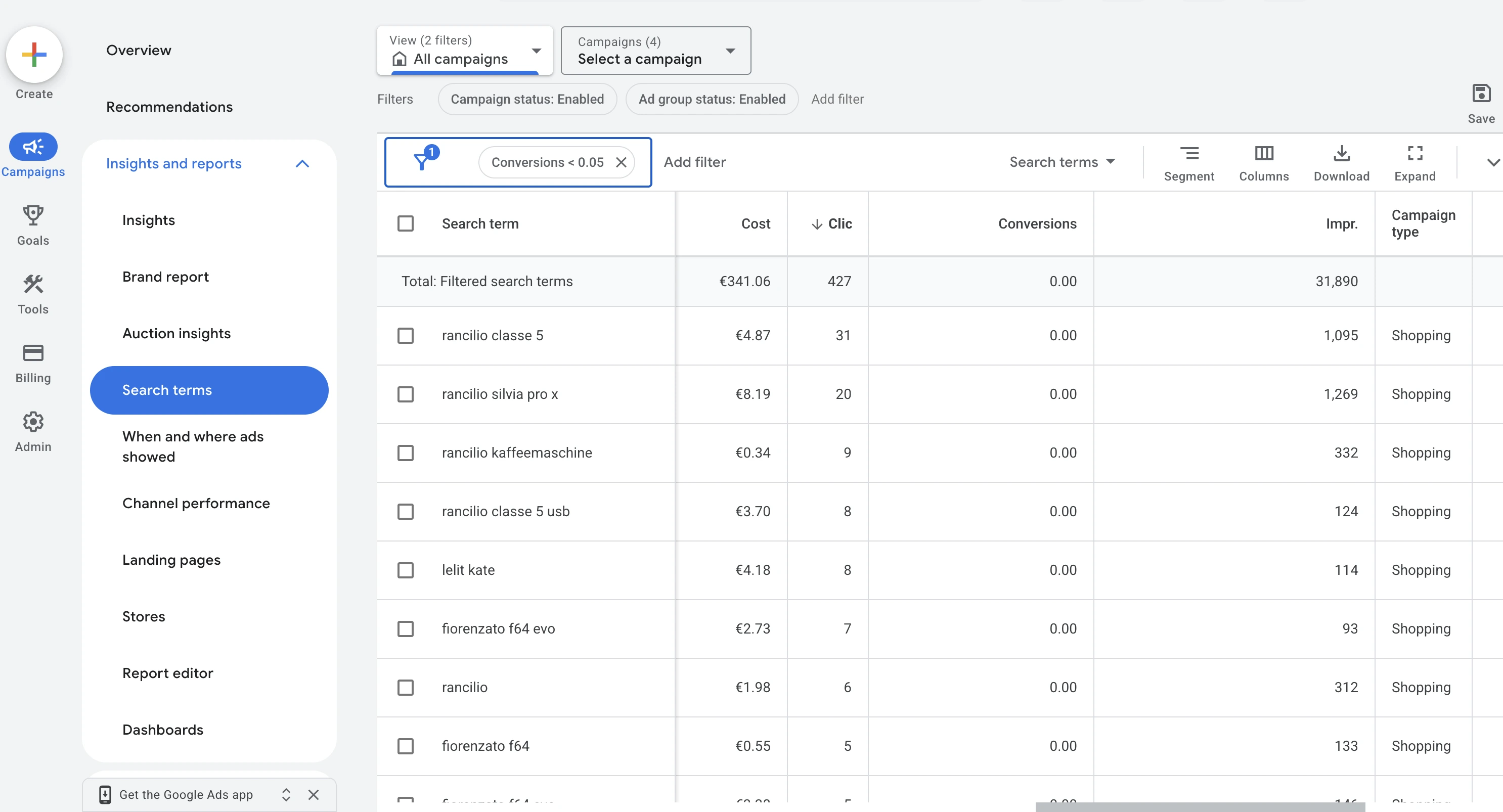
The search terms report, filtered to terms without a conversion and sorted by clicks. Read from top to bottom, this is your list of candidates for exclusion. Screenshot: Google Ads
The report doesn’t show everything. Google leaves out rarely searched terms for privacy reasons, so the visible rows add up to less than the campaign’s total spend. There’s no way to see what’s in this gap. One more reason to exclude individual problem words and not only whole search queries.
That brings us to the most important move. If you select a search term in the report and choose “Add as negative keyword”, Google adds the whole search term as exact match, in square brackets. That blocks exactly this one phrasing and no other. If you’ve excluded “[buy used running shoes women]”, tomorrow you’ll pay for “used running shoes size 7”. In the dialog, delete everything except the problem word and remove the brackets. That turns the one search query into the exclusion “used”, which blocks every query containing exactly this word. Add “second hand” right away too; the next section shows why.
How Google adds the search term
[buy used running shoes women]blocks exactly this one phrasing
How you should enter it
usedsecond handblocks every query that contains one of them
How far does an exclusion reach?
Exclusions work more narrowly than regular keywords. According to Google’s help, they don’t match close variants: upper or lower case doesn’t matter, but you have to add singular, plural and synonyms individually. On misspellings, Google’s own help pages contradict each other, so it’s better to add common misspellings yourself. Excluding “engraving” doesn’t block “engraved”, and excluding “spare part” doesn’t block “spare parts”.
Type
Notation
Your ad won’t show if the search ...
Example: excluding used running shoes
Broad match (default)
used running shoes
contains all the words, in any order
“running shoes used women” is blocked, “running shoes women” is not
Phrase match
"used running shoes"
contains the words in exactly this order
“buy used running shoes” is blocked, “running shoes used” is not
Exact match
[used running shoes]
is exactly this, without any other words
only “used running shoes” is blocked
For most exclusions in shops, a single word as broad match is the right choice, because it blocks every query containing that word.
Do negative keywords work for Shopping and Performance Max?
Yes, and for Shopping they’re the only lever on the search query. A Shopping campaign has no keywords. Google matches your products to search queries based on the title and description in your feed, and you bid on products. So the only way to say which search terms you don’t want is through exclusions. The feed handles the rest: if “engraving” is in the title of a product that isn’t engraved at all, the title attracts the wrong search queries, and no exclusion fixes that for good. How Shopping campaigns are structured is covered in How to Set Up Google Shopping.
Since 2025, you can add Performance Max negative keywords directly in the campaign. Before that, it only worked through Google support. You can add individual exclusions, up to 10,000 per campaign, and assign existing lists. According to Google’s help, they only apply to Search and Shopping inventory. They have no effect on YouTube, in the Display Network or in Gmail. Account-level exclusions automatically apply to Performance Max as well.
For your own brand, brand exclusions are a better choice than negative keywords. A brand list covers spellings and variants of your shop name that you would otherwise have to enter one by one as individual exclusions. Why your brand belongs out of Performance Max is explained in Google Ads Optimization. How Ginny finds search terms without revenue and suggests them for exclusion is shown on the page Negative Keywords: Stop Wasted Ad Spend.
Account, campaign or list: where does each exclusion belong?
The more generally an exclusion applies, the higher up it belongs. What your shop never sells goes at account level. What applies to several campaigns goes into a list. What only affects one campaign stays there.
Level
What for
Limit according to Google
Example
Account
everything the shop never offers
1,000 exclusions
job, free, used
List
topics that affect several campaigns
20 lists with 5,000 keywords each
list “Repairs and spare parts”, list “Other brands”
Campaign
separating campaigns from each other
10,000 exclusions
your own brand in the non-brand campaign
Ad group
fine-tuning in Search campaigns
not stated separately by Google
“women” in the ad group for men’s shoes
Lists have an advantage that matters day to day: you maintain a word once, and it applies in every assigned campaign. When you create a new campaign, you assign the lists and you’re done. This step is the one most often forgotten. A list that isn’t assigned to any campaign blocks nothing.
The account level is convenient but blunt. It applies to all Search and Shopping inventory, including campaigns you create a year from now. Only add what really never fits.
Starter list for online shops
These words cost money in almost every shop without selling. Use them as a starting point and remove whatever does fit your shop.
Group
Exclusions
Remove if ...
Used and private
used, second hand, secondhand, classifieds, ebay
you sell B-stock or used goods
Repair and spare parts
repair, repairs, spare part, spare parts, broken
you carry spare parts
Information instead of purchase
instructions, manual, pdf, what is, how does, review, reviews
you advertise guide content
Free
free, for free, diy, do it yourself, make your own
you offer free samples (if buyers search for “free shipping” or “gluten free”, remove only “free”)
Every form is listed separately, because exclusions don’t combine singular and plural.
Then there’s the price range. A shop in the lower price segment excludes “luxury”, “designer” and “premium”; a high-end shop excludes “cheap”, “inexpensive” and “discount”. If you sell mid-range, leave both in and check the report.
Be careful with brands. Excluding other brands is right as long as you don’t carry them. If you add a brand to your range later, the old exclusion silently blocks your new products, and nobody notices, because nothing shows up as an error. So keep other brands in a list of their own and check it whenever you expand your range. The same goes for “review” and “reviews”: in some product ranges, these are exactly the searchers who buy, and only your own report shows you that.
When an exclusion doesn’t work or blocks too much
If an exclusion doesn’t work, it’s almost always down to one of four causes. Google’s troubleshooting help names them all.
The variant is missing. You excluded “spare part”, and the search was “spare parts”. Add singular, plural and common synonyms individually.
The list isn’t assigned. It sits in the shared library, but the campaign doesn’t know about it. Check in the list which campaigns are attached to it.
The match type is too narrow. An exact match exclusion blocks only one phrasing. Change it to the single word.
The search query is longer than 16 words. If the excluded word comes after the sixteenth, the exclusion doesn’t apply. This is rare, but it explains individual outliers in the report.
Also check the date range. An exclusion added yesterday doesn’t change last week’s rows. The change history shows when it was added.
The reverse case is more expensive because it goes unnoticed: an exclusion blocks search queries that would sell. A typical cause is a word that also appears in purchase queries: if you exclude “instructions”, you also lose “craft kit with instructions”. Or an exclusion conflicts with one of your own keywords: you bid on “running shoes women” and have excluded “women” at account level. Google flags such conflicts in the recommendations, and for the affected keyword, keyword diagnostics show that a negative keyword is preventing the ad from showing. If a campaign drops for no apparent reason, first check the change history to see whether exclusions were added shortly before.
If you don’t want to check this yourself every week, you can hand it off. A full Google Ads audit uncovers existing problems in one go, and Ginny checks the search terms every day and puts every exclusion in front of you for approval.
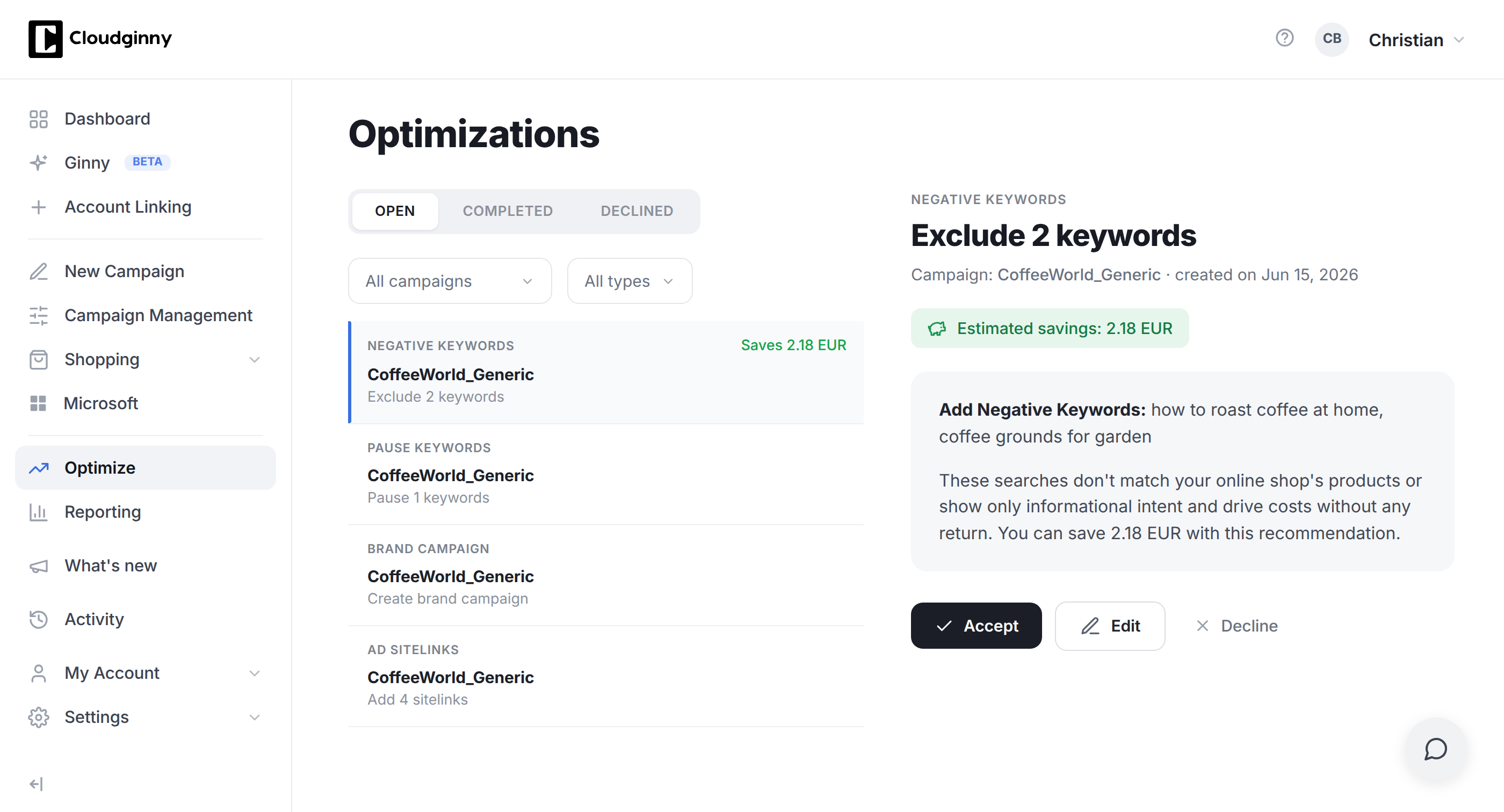
Ginny suggests exclusions with a reason, here “how to roast coffee at home” and “coffee grounds for garden”. Nothing changes until you click Accept. Screenshot: Cloudginny
Frequently asked questions about negative keywords
Are negative keywords the same as excluded keywords?
Yes. Both terms describe the same feature. In the German version of Google Ads, it’s called “auszuschließende Keywords”, which literally means keywords to exclude.
How many negative keywords can I add in Google Ads?
1,000 at account level, 10,000 per campaign and up to 5,000 per list, with a maximum of 20 lists per account. For a shop, that’s usually more than enough. More important than the number is that the lists are assigned to the campaigns.
How often should I check the search terms report?
Once a week in small accounts, twice a week in large ones. You can add new exclusions at any time; they take effect from the next auction and don’t need a learning phase.
Can I exclude keywords in Shopping campaigns?
Yes, at campaign and ad group level, through lists and at account level. Because Shopping campaigns don’t have keywords of their own, exclusions are the only direct way to steer the search queries there. Everything else runs through the title and description in the feed, as described in the Merchant Center guide.
Can too many negative keywords do harm?
Yes, if they’re too broad. Every excluded word blocks all search queries that contain it, including ones from ready buyers. Only exclude what has been shown not to sell, and review your exclusions after changes to your range. What clicks should cost overall is worked out in our guide Google Ads Costs.
Do I need an agency for negative keywords?
No. The search terms report and exclusions are freely available in every account. What it takes is a weekly routine. With Shopping, there are no keyword bids for anyone to manage on your behalf anyway; more on that in the article on Google Shopping agencies.
Christian Beeking is co‑founder of Cloudginny, the AI agent for automating Google Ads in e‑commerce. Before Cloudginny, the team managed more than 100 million euros in Google Ads budget for brands such as MediaMarkt, Cisco and Bose, and has now poured that knowledge into Ginny. Cloudginny is an official Google Partner, a WebStollen partner and part of the German Accelerator.
From an empty Merchant Center account to your first Shopping campaign in seven steps: what you need beforehand, how long Google takes to review your products, whether to start with Standard Shopping or Performance Max and what to check in the first week.
Most guides to WooCommerce and Google Ads date from the time when the plugin was still called Google Listings & Ads and free product listings showed up in Google Search. Both have changed. This guide shows the 2026 route: plugin or feed extension, shipping and unit price, tracking without double counting, the most common errors and why the campaign belongs directly in Google Ads.
Most guides to Google Ads optimization are lists of ten equally weighted tips. In an online shop, though, the order decides: if you fine-tune bids while Google counts page views as sales, you only amplify the error. This guide shows the five levers in the order in which we tackle shop accounts, with figures from our customer accounts and the right rhythm for changes.