July was the most productive month Ginny has ever had. Four big updates went live, and they all serve the same goal: you steer your Google advertising in plain sentences, instead of clicking through menus in your ad account.
Here is everything new at a glance, with concrete examples of how to put it to work right away.
What’s in the July update
Ginny builds new Standard Shopping campaigns entirely on her own, by chat, with a preview and your approval.
You decide which brands, categories or products get advertised, for Shopping and Performance Max.
Ginny shows you the search terms of your Performance Max campaigns and blocks the irrelevant ones on request.
Ginny sends you her analyses and to-do lists by email on request, to a second address too.
1. Shopping campaigns? Ginny builds them for you now
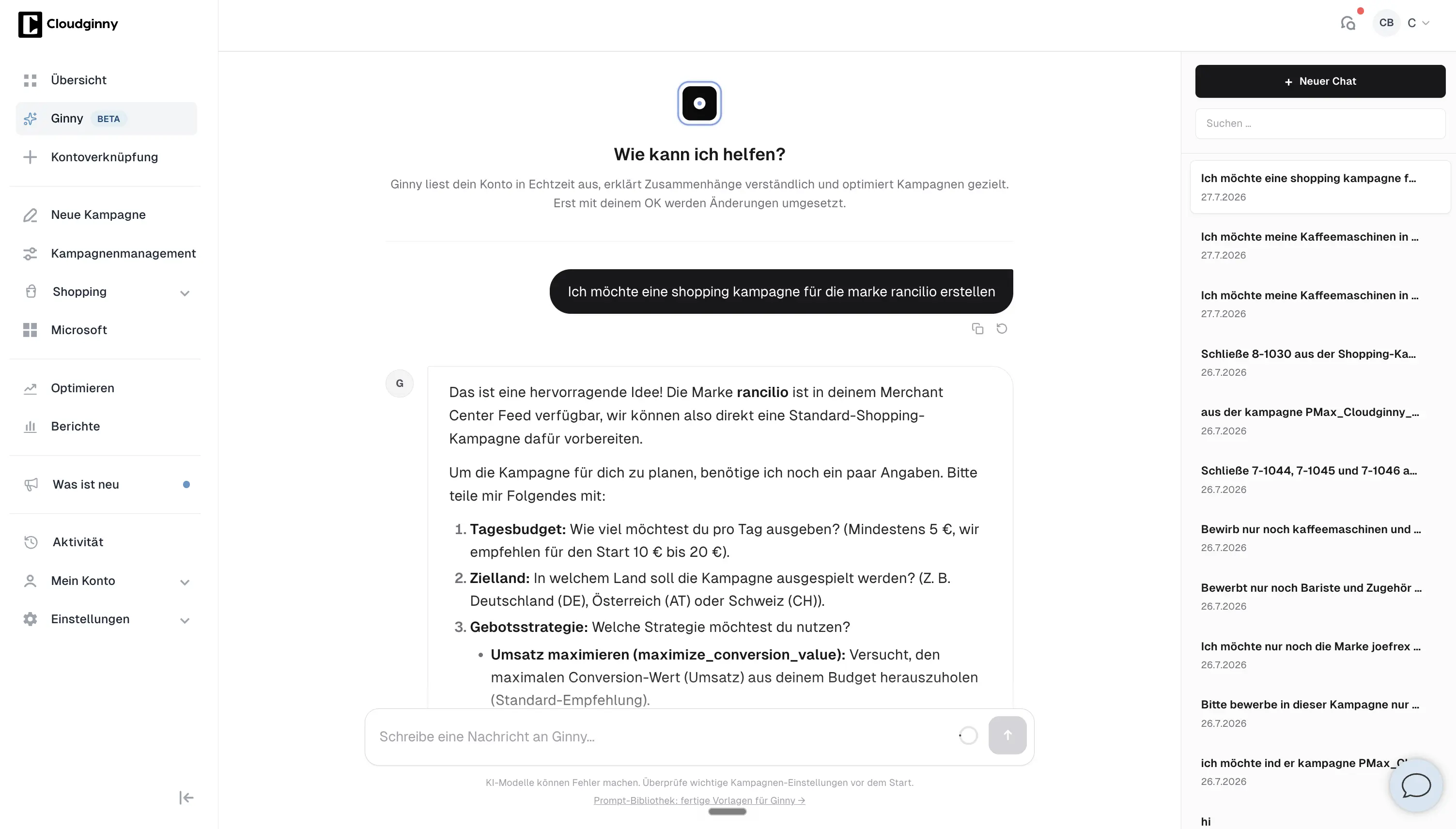
Until now, Ginny analyzed and optimized your existing campaigns. Now she takes the next step: she builds new Standard Shopping campaigns entirely on her own, campaign, daily budget, product selection, all in one go.
And here is how it works: you describe in the chat, in your own words, what you want. Ginny shows you exactly what she will create beforehand, which campaign, which budget, which products. Nothing goes live until you approve it. No accidental click, no surprise in your ad account.
How you tell Ginny
Set up a Shopping campaign for my Garden Furniture category, with a 15 dollar daily budget.
What used to be an afternoon in your Google Ads account (choosing the campaign type, understanding the settings, building product groups) is now a short conversation.
2. You decide which products get advertised
Not every product belongs in your advertising. Some have too little margin, others are out of season or barely in stock. Yet Google campaigns happily spread your budget across the entire catalog.
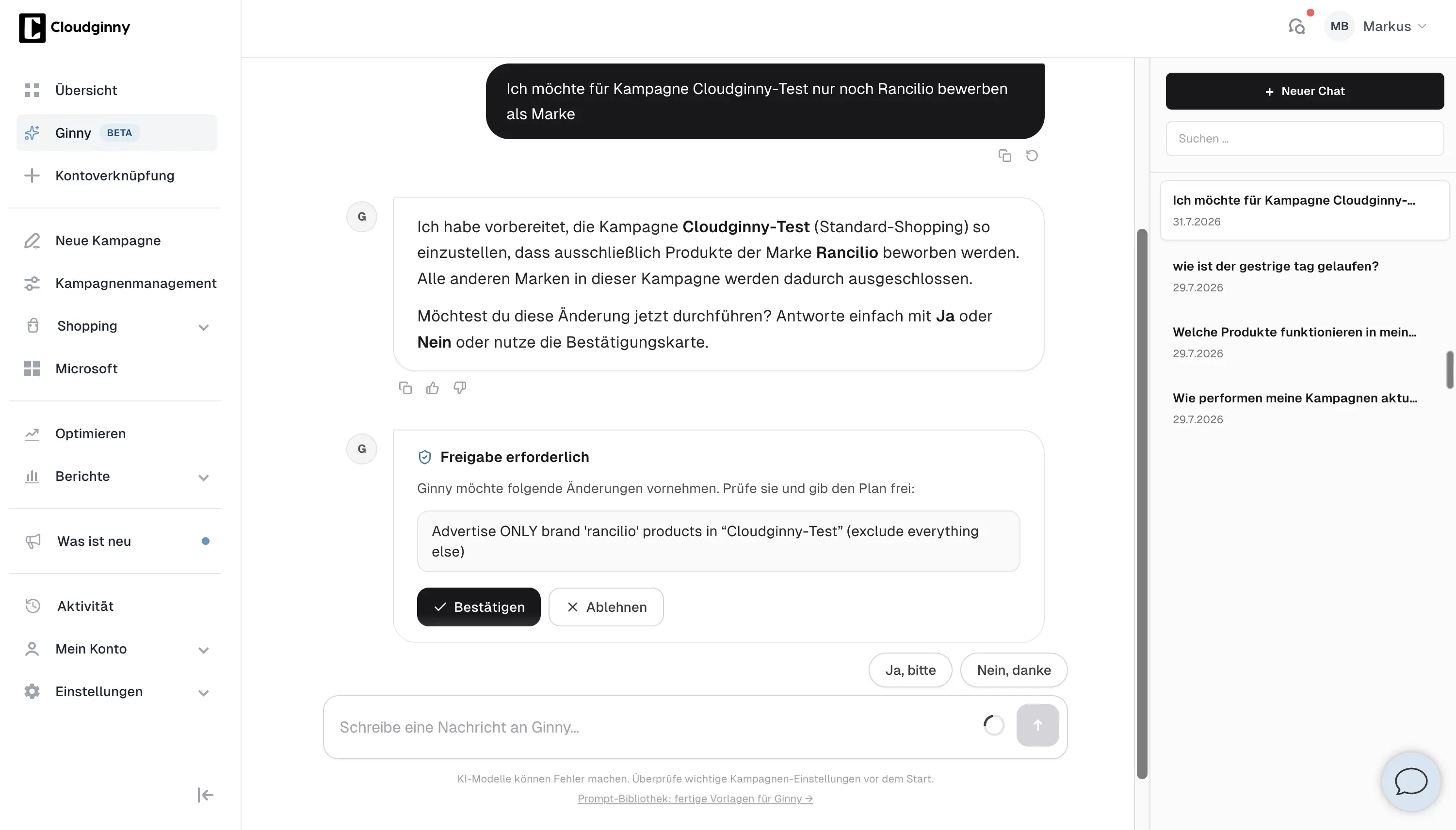
That ends now. Ginny can exclude whole brands, categories or individual products from your campaigns, and add them back just as easily when the season returns. Or you flip it around and tell her a campaign should advertise only a specific selection: just your bestsellers, just one brand, just one category.
This works for Shopping and Performance Max campaigns alike.
How you tell Ginny
In this campaign I only want to advertise my bestselling brand, exclude the rest.
The result: your ad budget flows only into the products that deserve it.
3. The Performance Max black box is open
Performance Max campaigns are Google’s automated campaigns: they decide for themselves which search queries your products show up for. That often works well, but which search terms those actually are was hard to see until now. A black box your budget flows into.
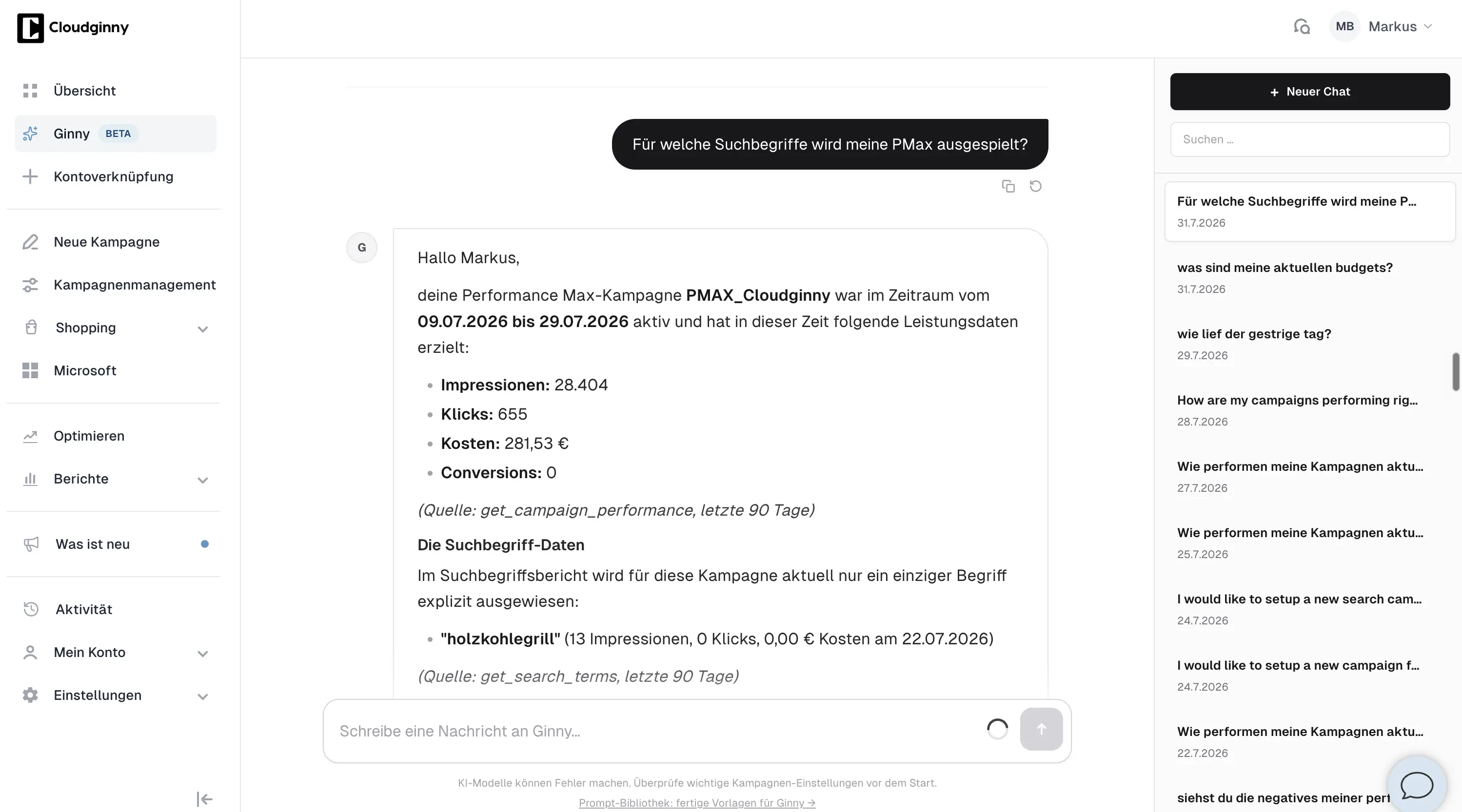
Ginny opens that black box: she now shows you which search terms your PMax campaigns are actually running for. And when irrelevant ones turn up, search queries that have nothing to do with your catalog or never buy, Ginny blocks them on request.
How you ask Ginny
Which search terms is my PMax campaign running for? Block the irrelevant ones.
4. Ginny’s results straight to your inbox
An analysis, a to-do list, a summary from the chat: Ginny now sends it to you by email on request. That way you have her results where you already work, and you can forward them or work through them whenever it suits you.
You can also add a second recipient address, for example for an AI assistant that works in your inbox and processes Ginny’s to-dos directly. The address is verified once with a quick confirmation email, so nothing accidentally goes to the wrong place.
How you tell Ginny
Summarize the three most important points from our analysis as a to-do list and send it to me by email.
Also new in July
Ginny BoostHitting your monthly limit more often? The new Boost add-on gets you 50 percent more Ginny per month, bookable straight from your account.
Chat searchYou can now search your old conversations with Ginny. And chats you no longer need can be deleted.
Demand Gen campaigns in the dashboardIf you run Google’s Demand Gen campaigns, you now see them in your Cloudginny reports too.
And under the hoodDozens of small improvements and bug fixes, so Ginny works faster and more reliably for you.
Give it a try
Every feature is live for you right now, with nothing to set up. Just open the chat and tell Ginny what you have in mind.
Christian Beeking is co‑founder of Cloudginny, the AI agent for automating Google Ads in e‑commerce. Before Cloudginny, the team managed more than 100 million euros in Google Ads budget for brands such as MediaMarkt, Cisco and Bose, and has now poured that knowledge into Ginny. Cloudginny is an official Google Partner, a WebStollen partner and part of the German Accelerator.
A Google Shopping agency only pays off from around $7,500 to $10,000 in monthly ad spend, and the feed tool, CSS fee and setup come on top of its fee. Most shops spend far less. This article covers what a Shopping agency really costs, what’s behind the promised 20 percent CSS savings, how to spot a bad offer and when an AI is enough for ongoing maintenance.
In December, every delivery promise counts, and Google calculates the delivery date for Shopping from your data. Because Google counts Christmas Eve and New Year's Eve as normal business days, it easily produces dates no carrier can keep. This article covers the 2026 shipping deadlines, how Google calculates the delivery date and what to change in Merchant Center through January.
For most online shops, Google Ads is the first paid channel. Yet the usual explanations only say what Google Ads is, not what a click really costs or where beginners lose money. This article explains the auction, the ad types that matter, the role of Merchant Center and the costs, with real figures from merchant accounts and the five most expensive mistakes to avoid at the start.